
Chapter 10 · 10.3
Turning on two-step verification
With two-step verification, you need a code as well as your password when you log in. An app on your phone creates that code, with a new one every 30 seconds. Even if someone knows your password, they still can't get into your webmail. In the webmail this is called 2-Factor Authentication.
What do you need?
An authenticator app on your phone, such as Google Authenticator, Microsoft Authenticator, Aegis or the app of your password manager. You can read more about these apps in Two-step verification: codes, apps and text messages.
How to turn it on

- Go to Settings and click 2-Factor Authentication.
- Tick Activate (1).
- Click Fill all fields (press Save button to save) (2). The webmail now creates a secret key, four recovery codes and a QR code. A message tells you to scan the QR code and check the code first. Click OK.
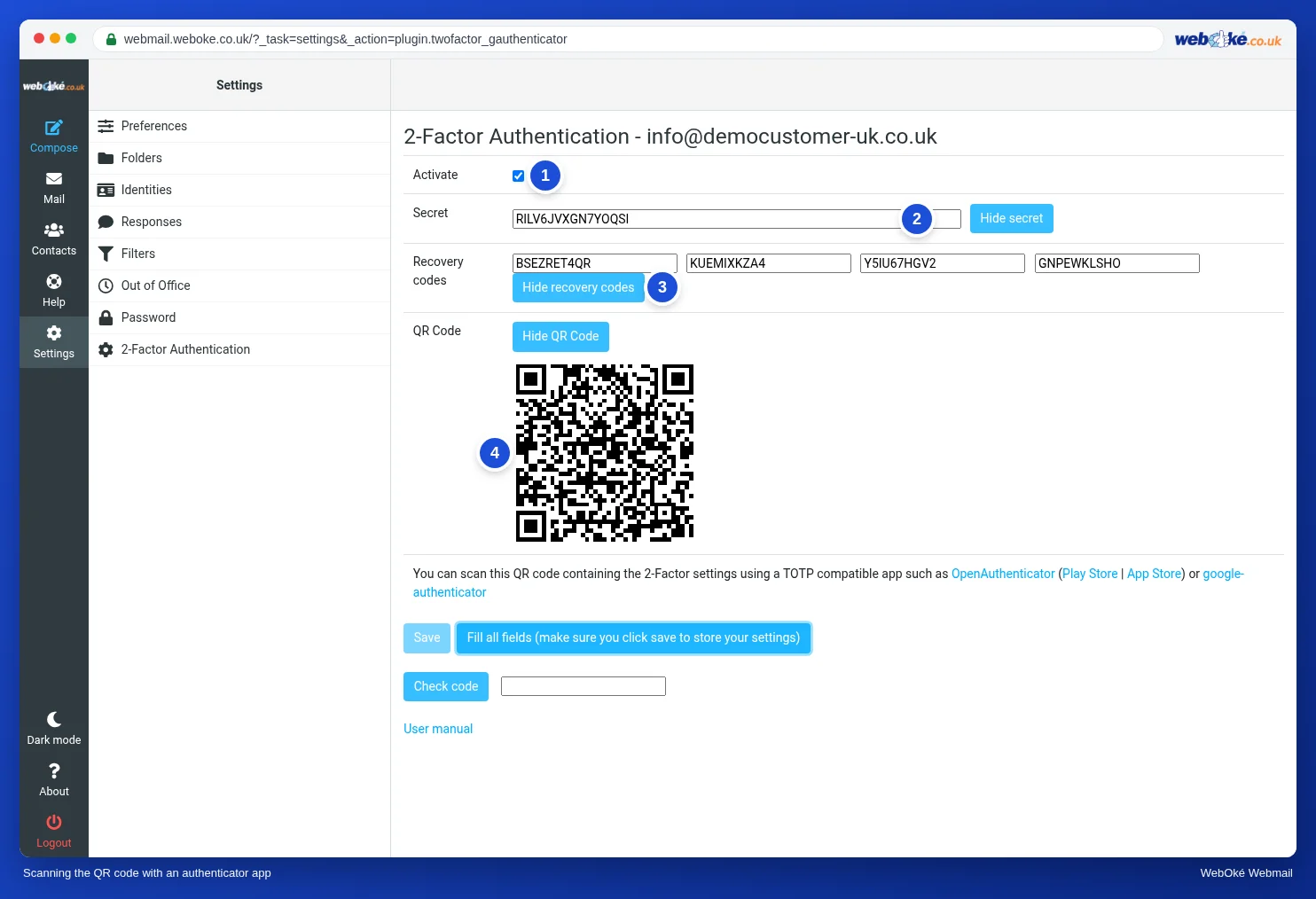
- Open the authenticator app on your phone and scan the QR code (4). Can't scan it? Then type the Secret (2) into the app.
- Keep the Recovery codes (3) somewhere safe, for example in your password manager or on paper. With a recovery code you can still log in if you lose your phone. Each code works once.
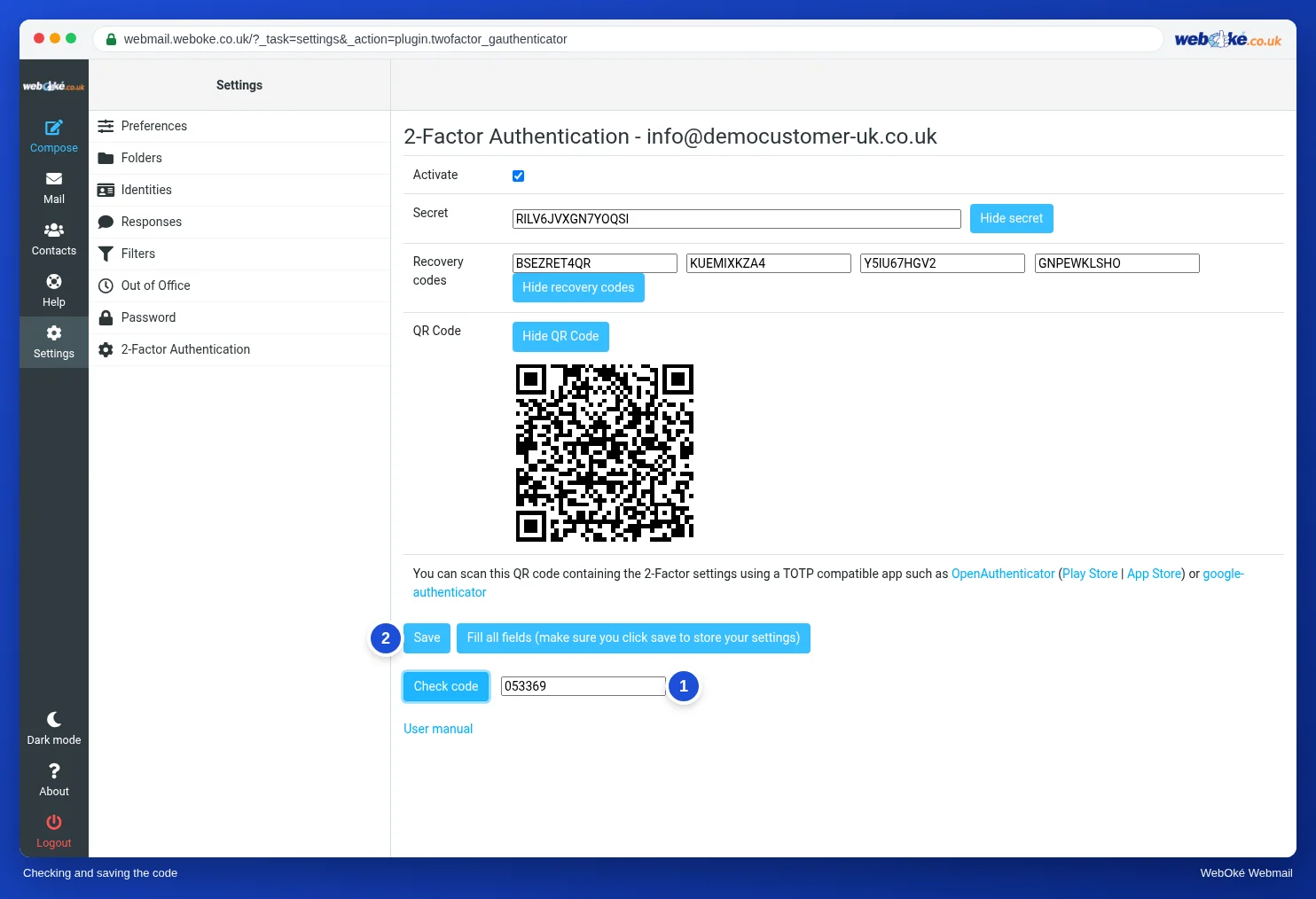
- Type the code the app is showing into the field next to Check code (1) and click Check code. You will see the message Code OK.
- Click Save (2). This button only works once the code has been checked.
From now on, the webmail asks for a code when you log in. See Logging in with two-step verification.
Please note: two-step verification in the webmail only applies to the webmail. Your email program and your phone still log in with just your password. So make sure you also use a strong, unique password. You set up two-step verification for My WebOké separately, see Setting up two-step verification in My WebOké with an authenticator app.
Turning it off again
Go to 2-Factor Authentication, untick Activate and click Save.