
Chapter 4 · 4.4
Formatting, drafts and extra options
By default, a message is plain text: no bold, colours or images in the text. If you want formatting, turn on the HTML editor. This article also explains how to save a draft and which extra options are available.
Formatting with the HTML editor
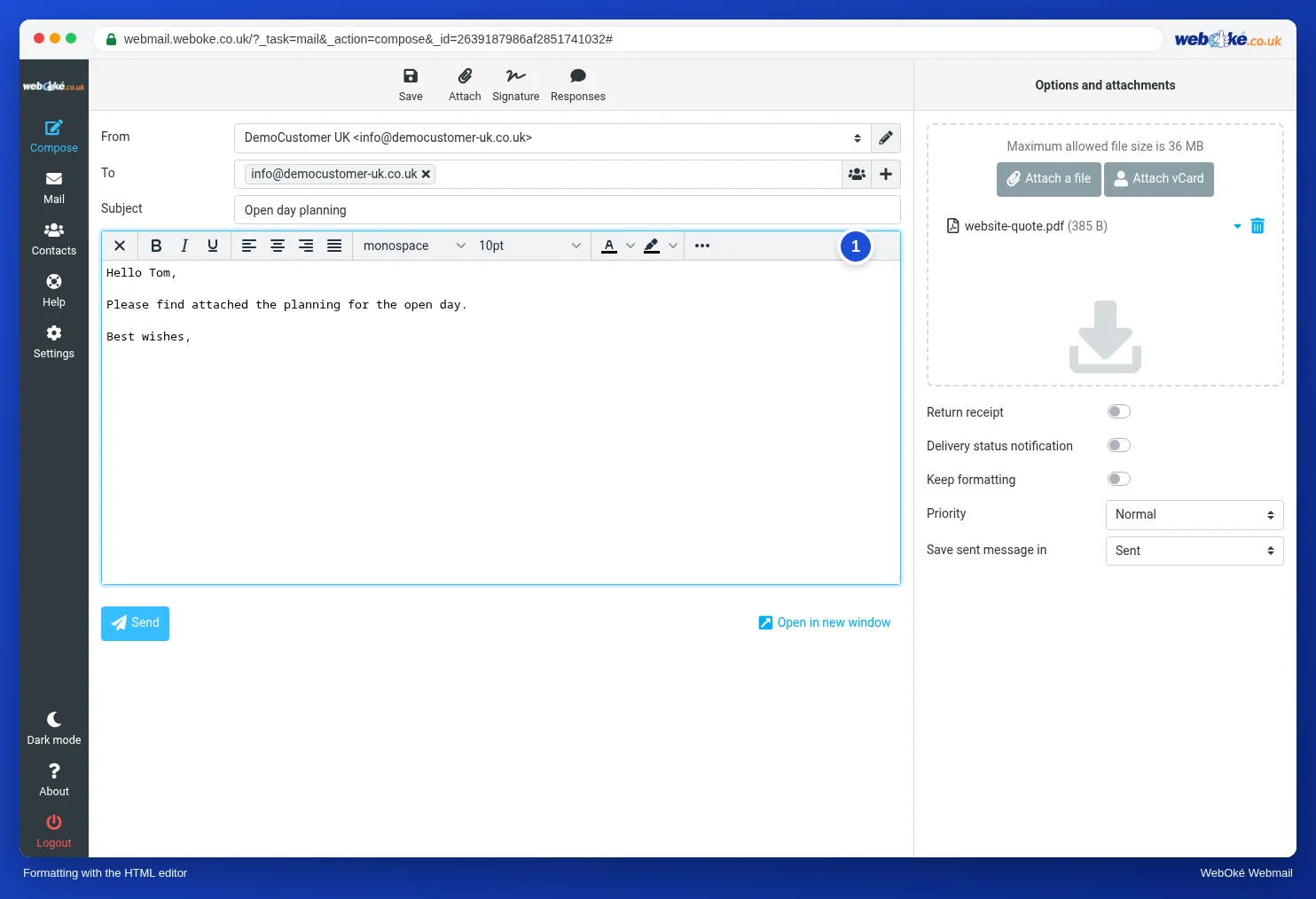
- Click the button with the image icon in the top left of the text box.
- Confirm the message that formatting may be lost.
- A toolbar (1) appears above the text with bold, italic, underline, alignment, font, font size and colours. The three dots give you more, such as links and images.
Click the cross on the left of the toolbar to go back to plain text. If you always want to write with formatting, set this in Settings, Composing Messages. See The most important settings.
Options when writing

| Option | What does it do? |
|---|---|
| (1) Return receipt | You ask the recipient to let you know they have opened the message. The recipient can refuse. |
| (2) Delivery status notification | The mail server notifies you when your mail has been delivered. |
| Keep formatting | When forwarding and replying, the formatting of the original message is kept. |
| (3) Priority | For example Highest or Lowest. Many mail programs then show an exclamation mark. |
| (4) Save sent message in | The folder your sent message goes to. Sent by default. |
Saving a draft

Not finished yet? Click Save at the top. Your message goes to the Drafts folder (1). The webmail also saves your message automatically every few minutes. Later, open the Drafts folder, double-click the message and carry on writing.
Stock replies: Responses
Do you often send the same reply? Turn it into a response: a fixed text you insert with one click. You create them in Settings, Responses. When writing, click Responses at the top and choose the text.