
Chapter 8 · 8.2
Creating groups
Do you often email the same group of people, such as your team or your club's committee? Then create a group. When you write a message, you can select the whole group in one go.
Creating a group
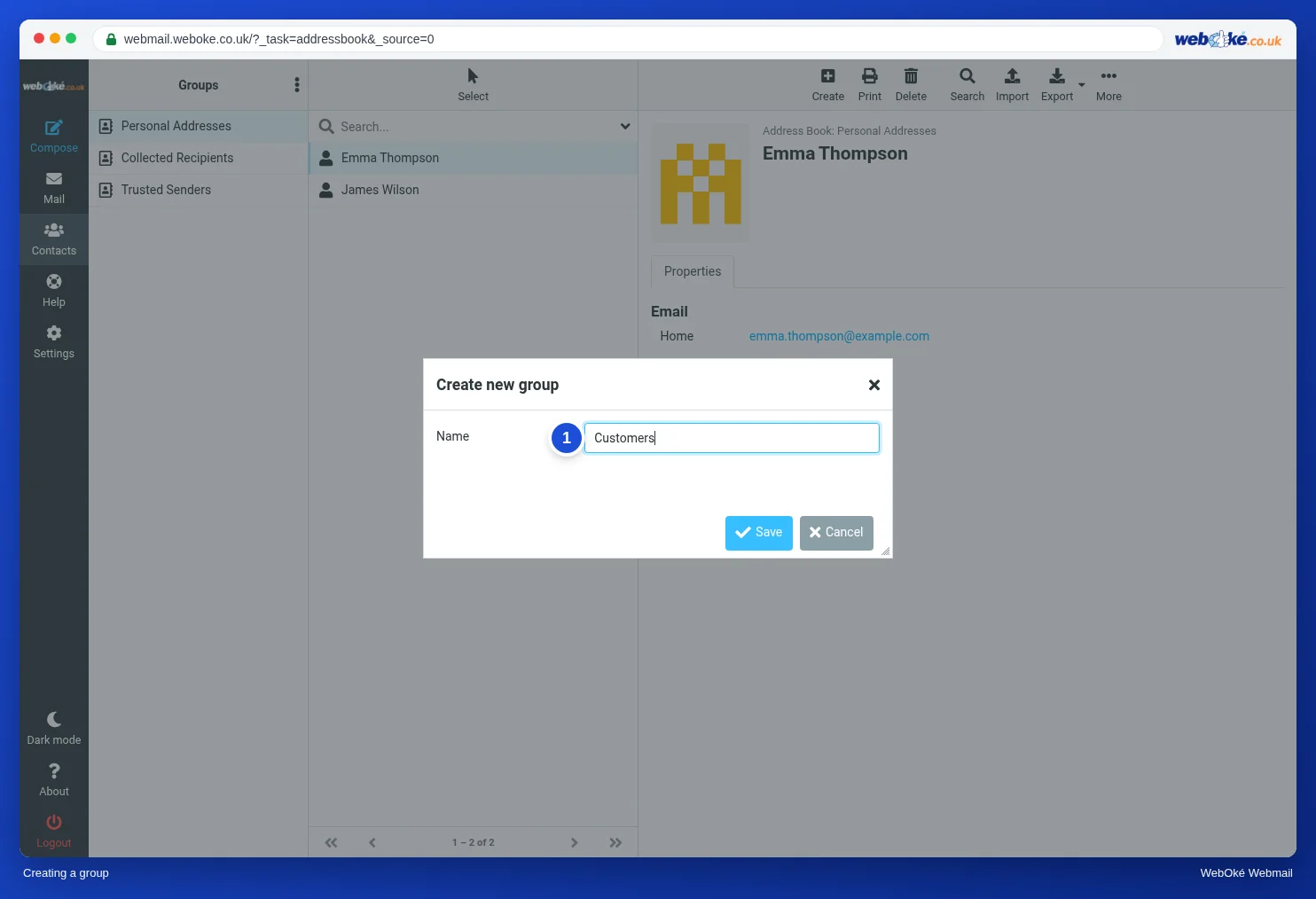
- Go to Contacts.
- Click the three dots next to Groups and choose Add group.
- Type a Name (1) and click Save.
Adding people to a group
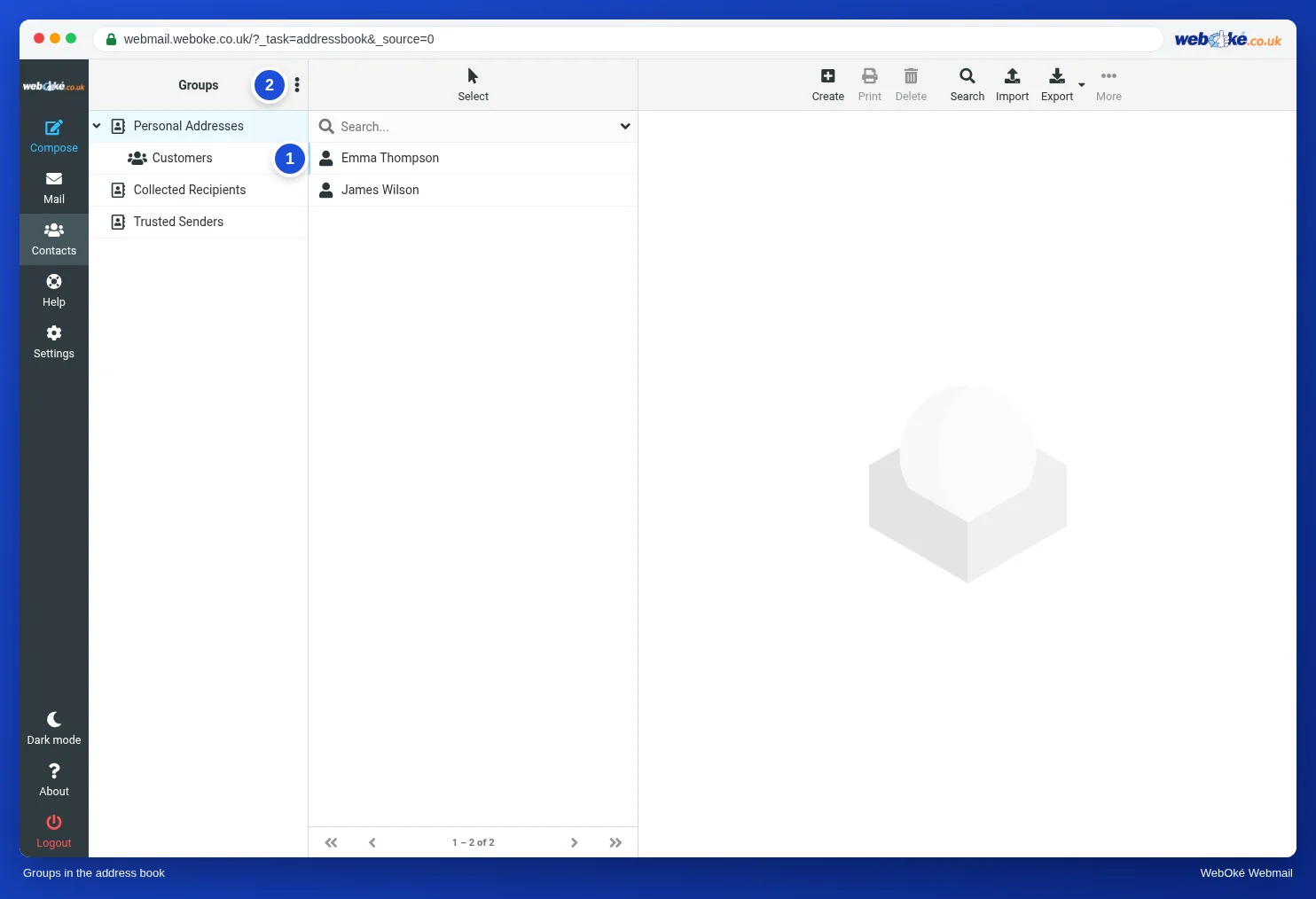
Drag a contact from the list to the group (1). You can also select several contacts and drag them all at once. On a contact's Groups tab, you can see which groups they belong to.
You can also rename or delete a group using the three dots (2). If you delete a group, the contacts themselves are kept.
Emailing a group
When writing a message, start typing the name of the group in the Recipient field, or select the group with the small button with the people icon next to the Recipient field.
Please note: for a large group, put the addresses in Bcc so that recipients can't see each other's addresses. And keep the daily sending limit in mind, see The daily limit has been reached.
Want to learn more? Take the free course Using webmail, lesson 7.1 Contacts and groups.