
Chapter 8 · 8.1
Adding and finding contacts
Use the address book to save the people you email often. When you write a message, the webmail then completes their address for you.
Adding a contact
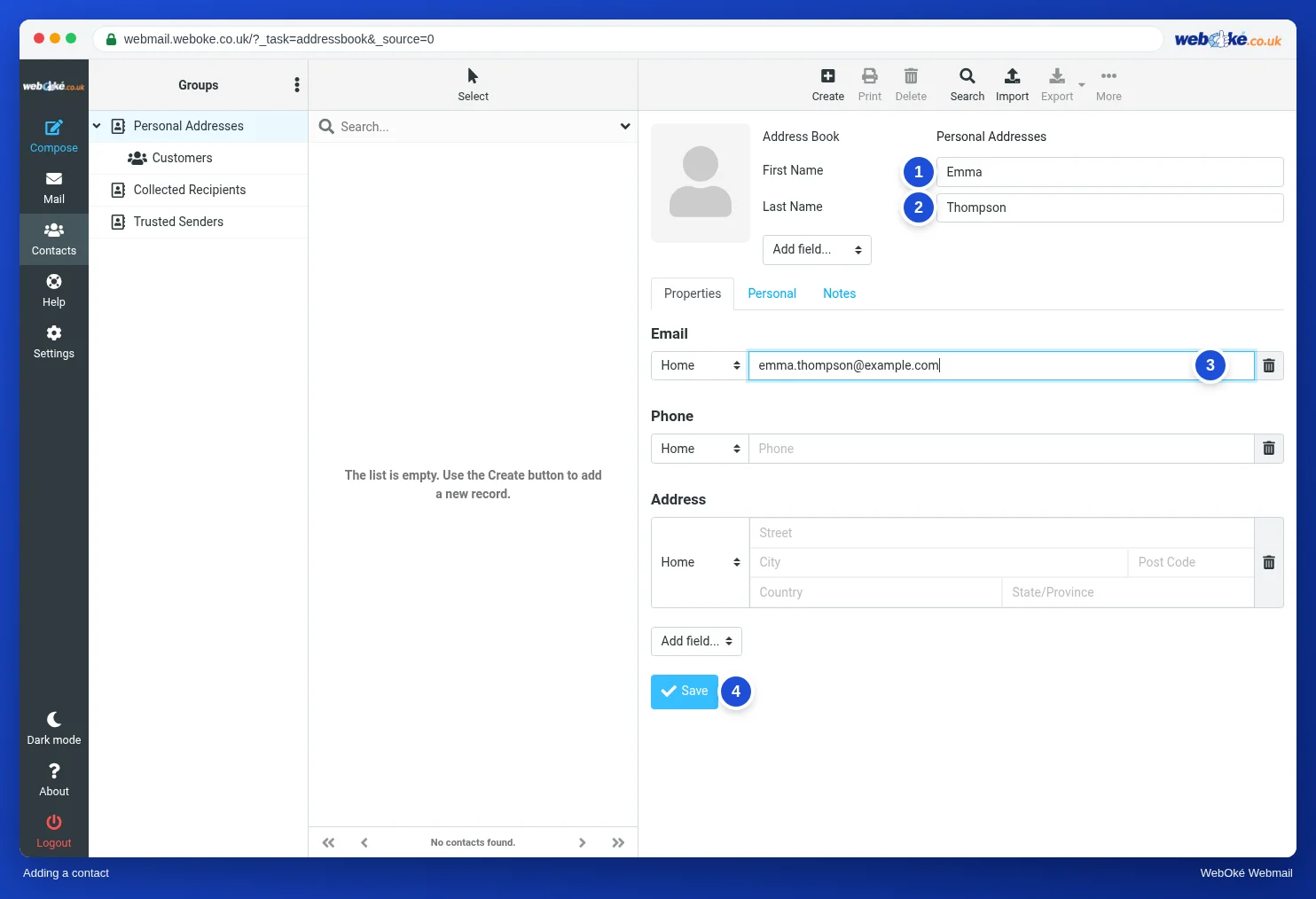
- Click Contacts in the menu.
- Click Create at the top.
- Enter the First Name (1), Last Name (2) and Email address (3).
- Use Add field... to add more details, such as an organisation, a second email address or a birthday. Phone and address are already there.
- Click Save (4).
Quicker: open a message, click the sender's name and choose Add to address book.
The address book

On the left (1) you see your address books:
- Personal Addresses: the contacts you add yourself.
- Collected Recipients: the webmail automatically remembers the addresses you send email to here.
- Trusted Senders: senders you trust. For these, the webmail can show images straight away, for example, if you set it up that way (see The most important settings).
Your contacts are in the middle (2). Click a name to see the details. Use Edit to change them.
Finding someone
Type a name or address in the search field above the list. Use Search at the top for a more detailed search, for example by organisation or phone number.
Emailing a contact
When you write a message, start typing the name in Recipient. Or click the button with the people icon next to the Recipient field and choose the contacts from your address book.