
Chapter 9 · 9.1
SpamAssassin Setup
We stop spam in two ways. First, our mail servers refuse mail from servers known to send spam (they appear on the Spamhaus or SpamCop lists). That already keeps a large share of spam out. Whatever still gets through is checked by SpamAssassin. This filter gives every message a score: the more spam features it has, the higher the score. If a message scores above the limit you choose, SpamAssassin treats it as spam.
This filtering happens automatically for all incoming mail. If you want to decide how strict the filter is and what happens to spam, you do that in DirectAdmin with SpamAssassin Setup (this article) and SPAM Filters (see SPAM Filters: blocking senders, domains and words).
You set up SpamAssassin per domain. If you have several domains in your package, you need to do this for each domain separately.
Turning on SpamAssassin
- Log in to DirectAdmin (see Signing in via My WebOké).
- In the menu under E-mail Manager, click SpamAssassin Setup.
- Check at the top right that the right domain is selected. If not, select it there (see Working with multiple domains: the domain selector).
- If you see the ENABLE SPAMASSASSIN button, the filter is still off for this domain. Click it. The button then changes to DISABLE SPAMASSASSIN (1).
- Under Blocking strategy, choose where spam should go (see below) and click SAVE CONFIGURATION.
Please note: Right after you enable it, Blocking strategy is set to Inbox. Spam is then recognised, but not yet stopped. So make sure you choose a different strategy, for example User Spambox, and save.
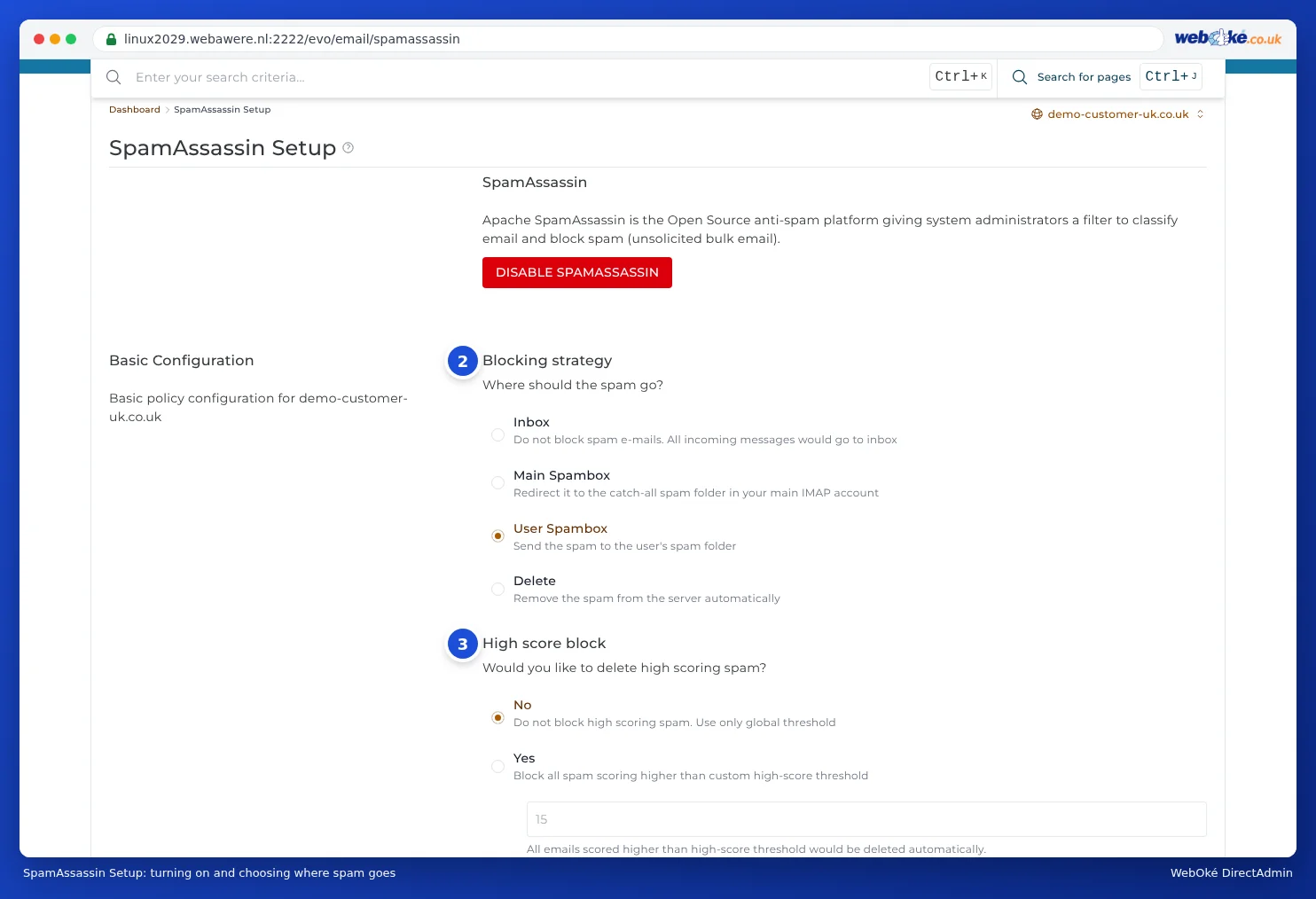
Where should spam go? (Blocking strategy)
Under Blocking strategy (2), you choose what happens to a message that has been recognised as spam:
| Option | What happens? | Advice |
|---|---|---|
| Inbox | Nothing is stopped. All mail, including spam, lands in your inbox. | Only if you filter in your own mail program. |
| Main Spambox | Spam for all addresses goes to one spam folder in your package's default email account (see The default email account of your package). | Handy if one person checks everyone's spam. |
| User Spambox | Spam goes to the spam folder of the mailbox the message was meant for. | Recommended. Everyone sees their own spam and can move back a message that was caught by mistake. |
| Delete | Spam is deleted from the server straight away. | Best avoided. A genuine email that is wrongly seen as spam is then lost without you noticing. |
Under High score block (3), you can have messages with a very high score deleted straight away. Choose Yes and leave the limit at 15. This keeps your spam folder tidy, while borderline cases still end up in your spam folder.
Then click SAVE CONFIGURATION below this section.
How strict is the filter? (Global threshold)
Scroll to Advanced Configuration. Under Global threshold (1), you choose the score from which a message counts as spam.
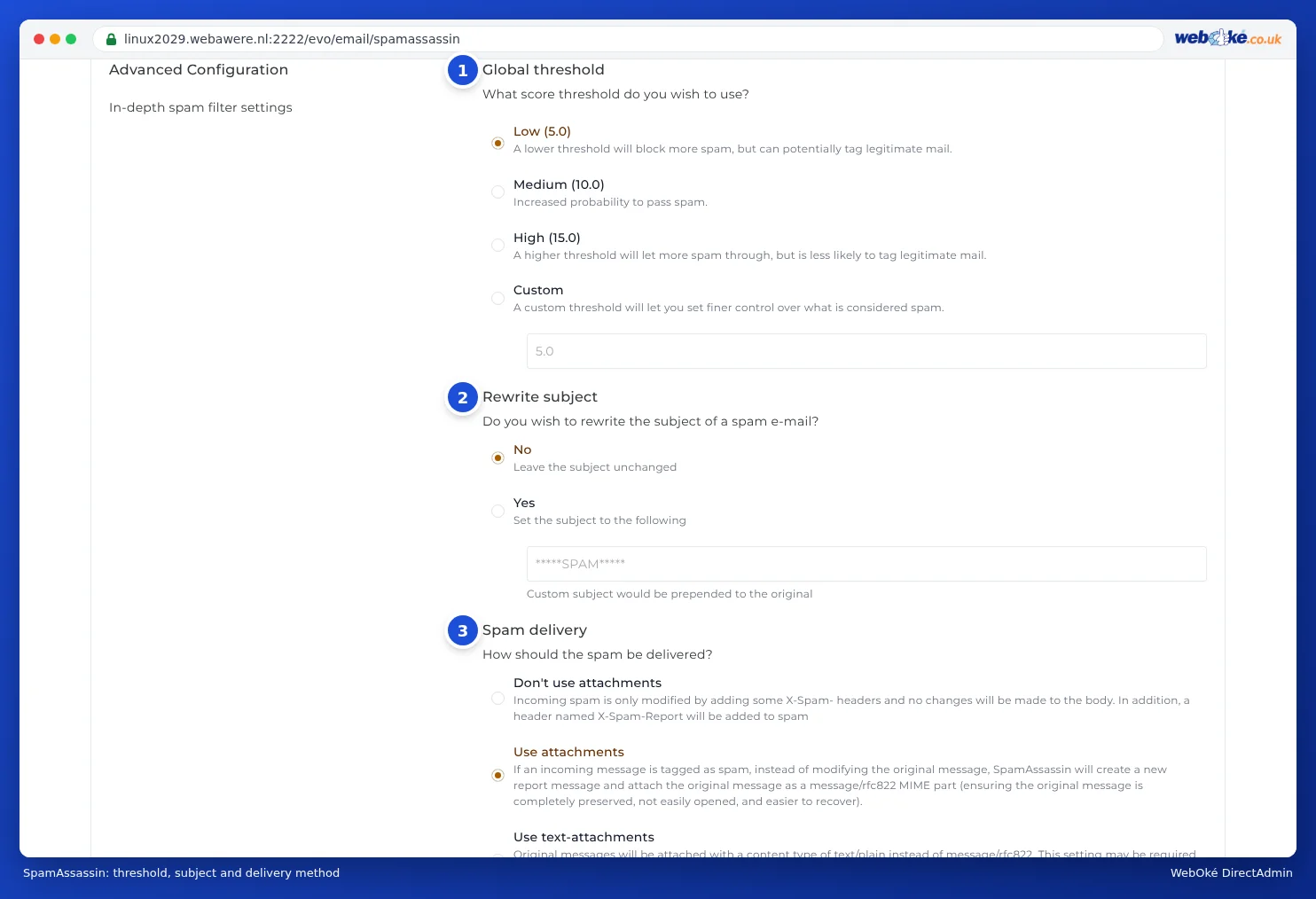
- Low (5.0): the strictest filter. It catches the most spam, but sometimes a normal email too.
- Medium (10.0): more spam slips through.
- High (15.0): only obvious spam is stopped.
- Custom: you choose a number yourself.
Please note: A low threshold is actually strict. The lower the number, the sooner a message counts as spam. Start with 5.0. If genuine mail regularly ends up in your spam folder, choose Custom with 6 or 7.
Under Rewrite subject (2), you can add a text to the subject of spam, by default *****SPAM*****. This is handy if you use POP3 or want to create a rule in your mail program that recognises spam. Under Spam delivery (3), you choose what the spam message looks like: as an attachment to a SpamAssassin report, or as a normal message with extra headers (Don't use attachments). If in doubt, leave this as it is. Click SAVE CONFIGURATION.
Blacklist and whitelist
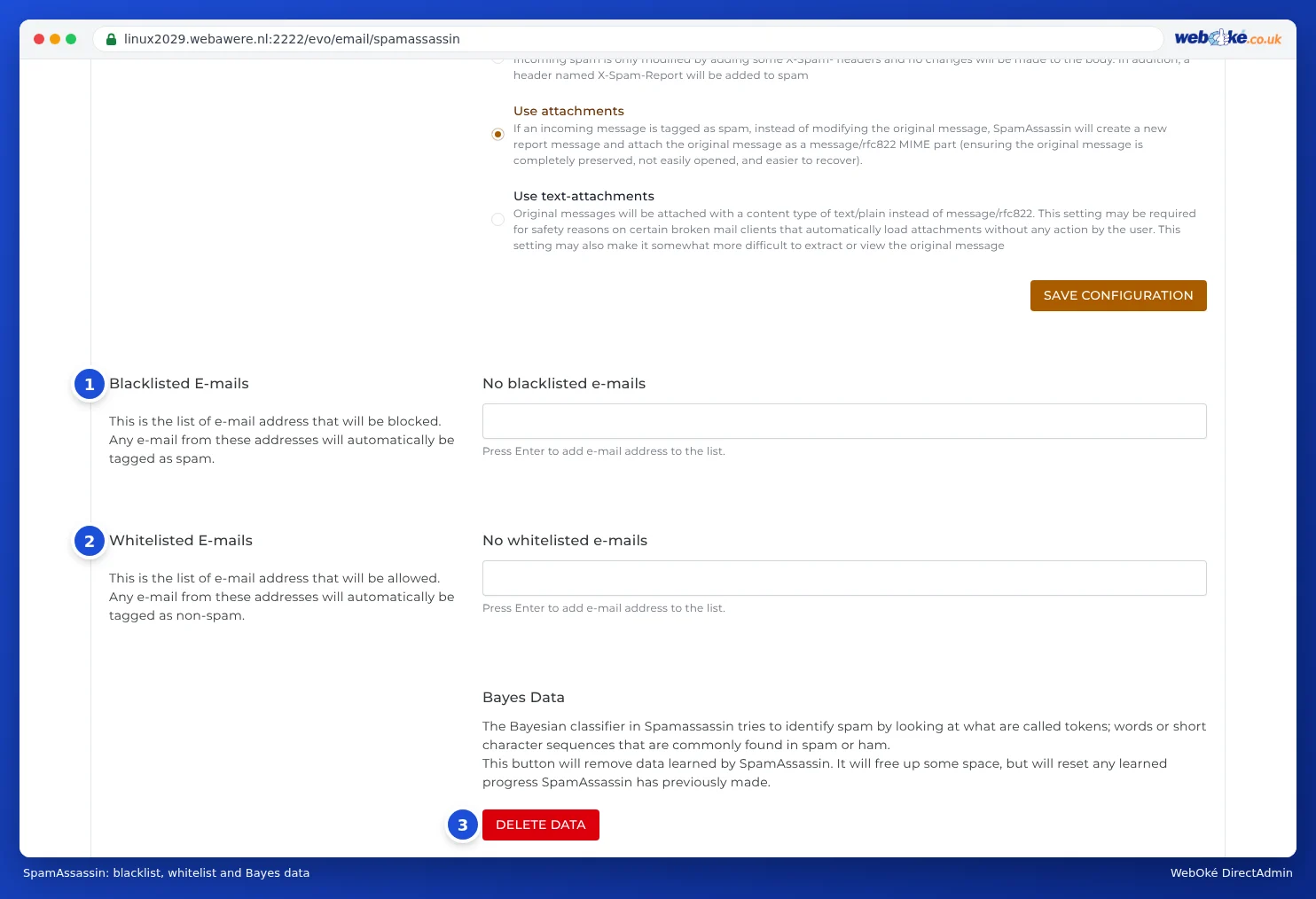
At the bottom of the page, you'll find two lists:
- Blacklisted E-mails (1): mail from these addresses always counts as spam.
- Whitelisted E-mails (2): mail from these addresses never counts as spam. Add a supplier or your accounting software here, for example, if their mail keeps landing in your spam folder.
Type the email address in the field and press Enter. To add a whole domain, use an asterisk, for example *@supplier.com.
Please note: Don't add addresses of large email services to the whitelist (such as *@gmail.com). Spammers often send mail with a forged sender. A rule like that would let exactly that spam through.
With DELETE DATA under Bayes Data (3), you clear what SpamAssassin has learned from your mail. You only need this if the filter works poorly after a lot of incorrect training.
Making the filter smarter
The spam filter learns from what you do. If spam lands in your inbox, drag the message to your spam folder. If a normal email is in your spam folder, drag it back to your inbox. This works in any mail program that uses IMAP (see IMAP or POP3: what's the difference?) and in webmail (see Opening webmail). On the server, the spam folder is called Junk. Your mail program shows it as Junk, Junk E-mail or Spam, and only that folder teaches the filter anything. You can read more about this in the article about folders in your mailbox.
Frequently asked questions
SpamAssassin is on, but I still get a lot of spam. Check that you haven't chosen Inbox under Blocking strategy, and that you've set up the right domain. Choose a stricter threshold (5.0), add persistent senders to the blacklist and check whether you have a catch-all turned on: it attracts a lot of spam (see Catch-All E-mail: mail to non-existent addresses). For spam that keeps using the same words, the SPAM Filters help (see SPAM Filters: blocking senders, domains and words).
An important email is in my spam folder. Drag it back to your inbox and add the sender to the whitelist.
I don't see a spam folder. If you use POP3, your mail program only downloads the inbox. Check webmail, switch to IMAP, or turn on Rewrite subject and leave Blocking strategy on Inbox, so you can recognise spam by its subject.
What happened to SpamExperts? We no longer use SpamExperts, which is why you no longer see that button. Incoming mail is filtered automatically. You can adjust the settings yourself with SpamAssassin Setup and SPAM Filters.
Does the spam folder count towards my storage? Yes. Spam takes up space in your mailbox. Empty the spam folder now and then, or have high-scoring spam deleted automatically (High score block).