
Chapter 5 · 5.10
E-mail with Microsoft 365 or Google Workspace, website with WebOké
Many businesses host their website with WebOké and use Microsoft 365 (Outlook, Exchange) or Google Workspace (Gmail) for e-mail. That works fine. You'll need to change a few things in DNS, and switch off one tick box in DirectAdmin. Complete all the steps, or you'll miss mail.
Step 1: verify your domain with the provider
Microsoft and Google first ask for a TXT record with a code, to check that the domain is yours. Add that record in DNS Administration (see TXT records for verification (Google, Microsoft and others)) and click verify with the provider.
Step 2: point the MX records to the provider
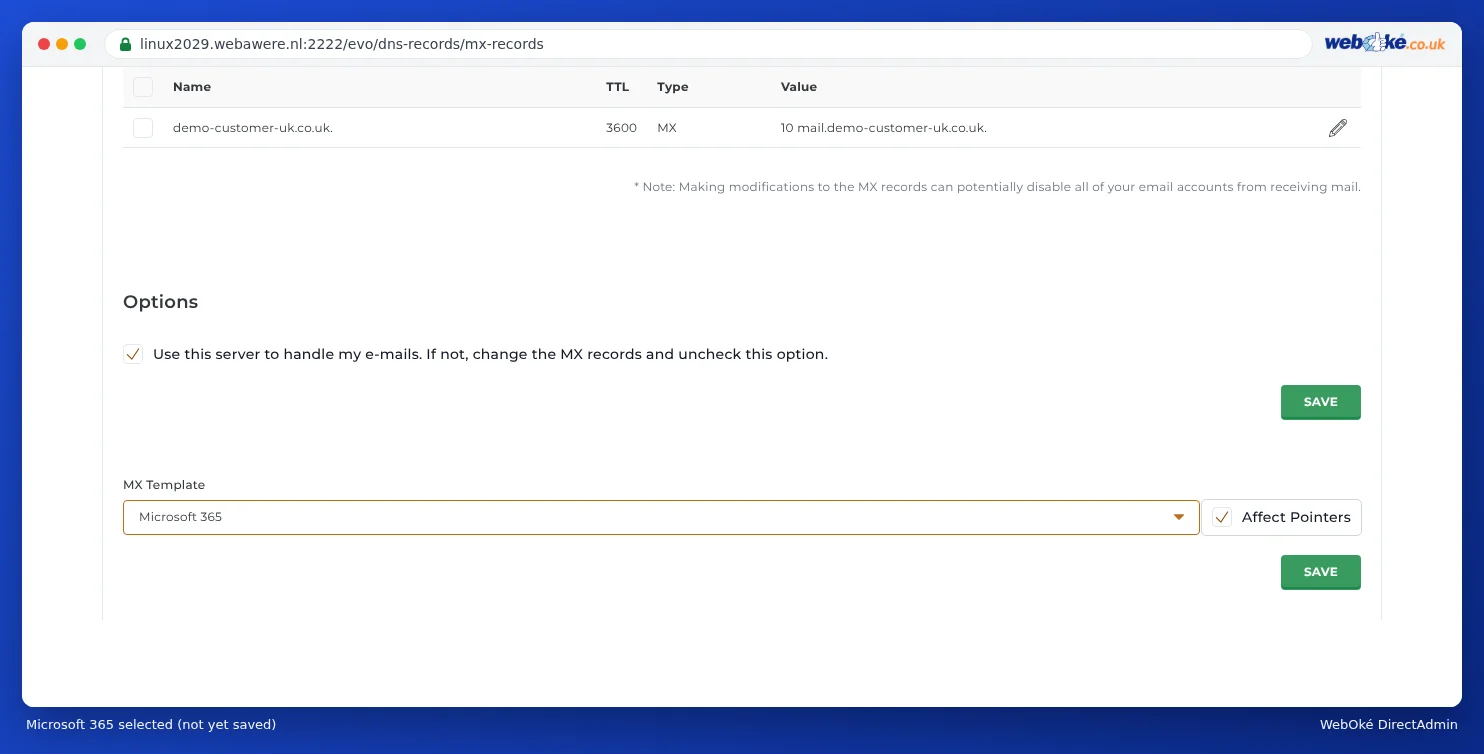
- Go to MX Records (under E-mail Manager).
- Under MX Template, choose Microsoft 365 or Google Workspace.
- Click SAVE under the template. DirectAdmin replaces the MX records with those of the provider.
- Check the new MX records against what the provider specifies. With Microsoft 365, each domain has its own address, such as yourdomain-com.mail.protection.outlook.com: adjust the record with the pencil icon if needed.
Prefer to do it manually? Then remove the two MX records pointing to WebOké and add the provider's records (see MX records: where does your email arrive?). You type the priority yourself, so 1 or 5 both work. Google nowadays specifies a single record: smtp.google.com. with priority 1.
Step 3: switch off the tick box
On the same page, under Options, remove the tick next to Use this server to handle my e-mail, and click SAVE.
Why? As long as the tick box is on, our server assumes your mailboxes are hosted with us. Mail from your own website (for example from your contact form or webshop) and from other websites on the same server is then delivered to us, and never reaches Microsoft or Google. The sender sometimes even gets the message 550 Unknown user.
Step 4: update your SPF record
Add the provider to your SPF record with include: (see Setting up and adding to SPF). Keep include:webawere.nl in place, as your website sends mail through our servers. For Microsoft 365, the record then looks like this, for example:
v=spf1 a mx include:webawere.nl include:spf.protection.outlook.com ~all
For Google Workspace, use include:_spf.google.com.
Step 5: DKIM and the remaining records
- DKIM: switch on DKIM in the provider's admin centre and add the records you get there. With Microsoft 365, that's two CNAME records (selector1._domainkey and selector2._domainkey). Add both, as Microsoft alternates between the two keys. Copy the value exactly as shown in the Microsoft admin centre. For domains added since 2025, it ends in dkim.mail.microsoft, for example selector1-yourdomain-com._domainkey.yourcompany.n-v1.dkim.mail.microsoft.; for older domains, it ends in onmicrosoft.com. Both are fine: don't add .com after it, but do add a full stop at the end. With Google, it's a TXT record (google._domainkey). See Turning on and checking DKIM.
- Autodiscover (Microsoft 365): a CNAME record with the name autodiscover and the value autodiscover.outlook.com., including the full stop. This lets Outlook find the right settings automatically.
- DMARC: with a hosting package, the DMARC record is set to Reject (p=reject) by default. Set it to None (p=none) temporarily until SPF and DKIM are correctly configured with the provider, then move back to Reject step by step (see Setting up DMARC).
Step 6: your old mail and mailboxes
Your mailboxes with WebOké remain in place, but no new mail will arrive in them. Want to bring your old mail over to the new provider? Read chapter 10 on moving e-mail, or use the migration tools from Microsoft or Google. Once you no longer need the mailboxes with us, you can delete them (see Deleting an e-mail address).
Moving back to WebOké
Under MX Template, choose Local Default, tick Use this server to handle my e-mail again, and remove the old provider's include from your SPF record.
Can I also do this in My WebOké?
Yes. In My WebOké, under My Domains, on the DNS tab, you'll find a block with your domain's e-mail settings. Use Quick setup to choose Microsoft 365 or Google Workspace. You'll see in advance which records will be added; the existing MX and SPF records are replaced and Delivery on our server is switched off for that domain. That last part is step 3 above (see DNS in My WebOké and with external name servers such as Cloudflare).