
Chapter 4 · 4.7
Site Redirects: forwarding a domain or page
With Site Redirects you automatically send visitors to another address. You can forward your whole domain, for example to your new website or your page on an online shop platform, or just one page, such as yourdomain.com/old to yourdomain.com/new.
Creating a redirect
- In the domain selector at the top right, choose the domain you want to forward.
- In the menu under Account Manager, click Site Redirects.
- Click ADD NEW REDIRECT.
- Under Local URL Path (1), enter the path you want to forward. A slash is already there: type after it, for example, old, so it reads /old. To forward the whole domain, leave just the slash.
- Under Redirect Type (2), choose the kind of redirect (see below).
- Under Destination URL (3), enter the full address. It already says http://: replace that with the whole address starting with https://, so http doesn't appear twice.
- Click CREATE.
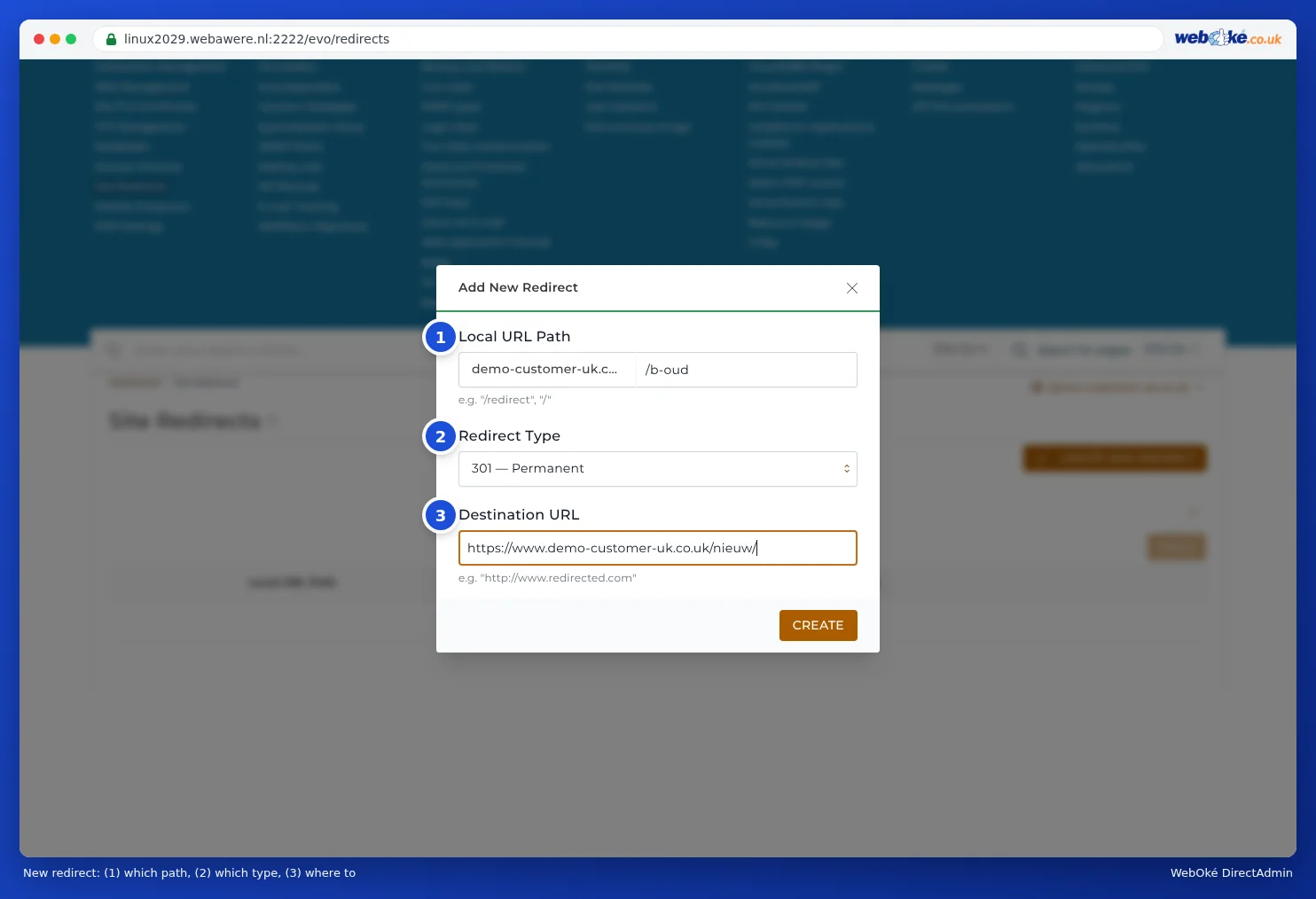
The redirect now appears in the list and works straight away.

Which type should you choose?
| Type | Meaning | When? |
|---|---|---|
| 301 (Permanent) | The address has moved for good. Search engines adopt the new address. | Almost always. For example, after moving to a new domain name. |
| 302 (Temporary) | The address is temporarily somewhere else. Search engines keep the old address. | For a promotion or a temporary page. |
| 303 (See Other) | A technical variant of temporary. | Rarely needed. |
The path is passed on
A redirect passes on everything after the path. If you forward the whole domain with just the slash (/) to https://www.newdomain.com/, a visitor to yourdomain.com/contact ends up at https://www.newdomain.com/contact.
Moving your website to a new domain name? Choose 301 and make sure the pages on the new domain keep the same address. If that isn't possible, create a separate redirect to the new page for important old addresses. Don't send everything to the home page: search engines will then lose track of your old pages.
Deleting a redirect
Tick the redirect in the list and click Delete. In the Delete Redirect window, click CONFIRM.
Pitfalls
- The redirect doesn't work, or you end up in a loop. Site Redirects writes the rule to the .htaccess file in public_html. If other rules are already there, such as from WordPress or a caching plugin, they can get in each other's way. If you're forwarding the whole domain, remove the website from public_html or put the redirect right at the top of .htaccess (see Showing and editing hidden files such as .htaccess).
- The redirect disappears from the list. This happens when the rule in .htaccess is overwritten, for example by WordPress or a plugin that rewrites the file. Create the redirect again, or set it up in your website's own settings.
- Visitors get a 'Not secure' warning. A visitor going to https://yourdomain.com must first see a valid certificate before the redirect works. So make sure you have a certificate even for a domain you only forward (see Requesting a free Let's Encrypt certificate).
- Only from www to without www? You don't need Site Redirects for that. Use Force redirect in the domain settings (see Domain settings: SSL, PHP, www and private_html).
Forwarding without a website
Do you have a domain just for forwarding, and isn't it in a hosting package? Then set up the forwarding in My WebOké under Forwarders (see Can I also do this in My WebOké? Domains per package and Forwarders).