
Module 7 · 7.2
Importing, exporting and moving
Module 7: Your address book · Reading time: 9 minutes
Learning objective: After this lesson you can move your contacts as a file into and out of the webmail, you choose consciously between vCard and CSV, and you avoid duplicates and lost groups.
Key concepts: vCard (.vcf), CSV, mapping fields, group assignment (CATEGORIES), duplicates, Replace the entire address book, backup, CardDAV
Your address book does not move by itself
When you move your mail from one provider to another, your messages and folders usually come along: they are stored on the IMAP server and a migration tool copies them. Your address book is stored somewhere else. In the webmail it is a separate list that belongs to the webmail, not to your mailbox. Moving your mail therefore leaves it behind. The same goes the other way: if you switch from Gmail or Outlook to a new mailbox, your contacts stay behind until you bring them along yourself.
You bring them along with a file. You export from the old program, you get a file, and you import that file into the new one. There are two types of file you will often come across.
vCard: the business card
A vCard is a text file with the extension .vcf. Each card starts with BEGIN:VCARD and ends with END:VCARD. In between, each line holds one piece of information, with a fixed name in front of it. This is what a card for Ahmed looks like:
BEGIN:VCARD
VERSION:3.0
FN:Ahmed Khan
N:Khan;Ahmed;;;
EMAIL;TYPE=INTERNET:ahmed@example.net
ORG:Example Wholesale
TEL;TYPE=WORK:+31 20 123 4567
CATEGORIES:Customers
END:VCARDVERSIONsays which version of the format it is. Version 4.0 is described in RFC 6350; version 3.0 is older, but almost every program still uses and reads it. The webmail exports in version 3.0.FNis the full name as you see it,Nis the name in parts (surname, first name).EMAIL,TELandORGspeak for themselves. A card can hold several addresses and numbers.CATEGORIESis the line for groups. If Ahmed is in your group "Customers", the webmail puts that here when you export.
One .vcf file can contain a single card or hundreds in a row. The advantage of vCard: the meaning of every field is fixed. A program does not have to guess what a phone number is.
CSV: a table without agreements
CSV (comma-separated values) is a table as text: the first line holds the column names, every following line is one person, with commas or semicolons in between. You can open it in a spreadsheet. That is handy for cleaning up a list, but it has a drawback: there is no fixed agreement about the columns. Google names a column differently from Outlook, and a Dutch-language Outlook differently again from an English one.
That is why, with a CSV file, the webmail has to map the columns to its own fields. If it does not recognise a column, it asks you which column belongs to which field. Check that mapping carefully. A classic mistake: the column with the work address is not mapped, and you end up with a hundred contacts without an email address.
Two more pitfalls with CSV:
- Strange characters. If you see "Müller" instead of "Müller" after importing, the file was not saved in UTF-8. Save it again in your spreadsheet as CSV in UTF-8 and import it again.
- Separator. A Dutch spreadsheet often uses the semicolon. If everything ends up in one column, the program read the separator wrongly.
If you have the choice, choose vCard. Google Contacts, Outlook and Apple Contacts can all export as vCard or as CSV.
Importing without damage
Under Contacts > Import you choose the file. Below it are two choices that make the difference between a tidy import and a messy address book.
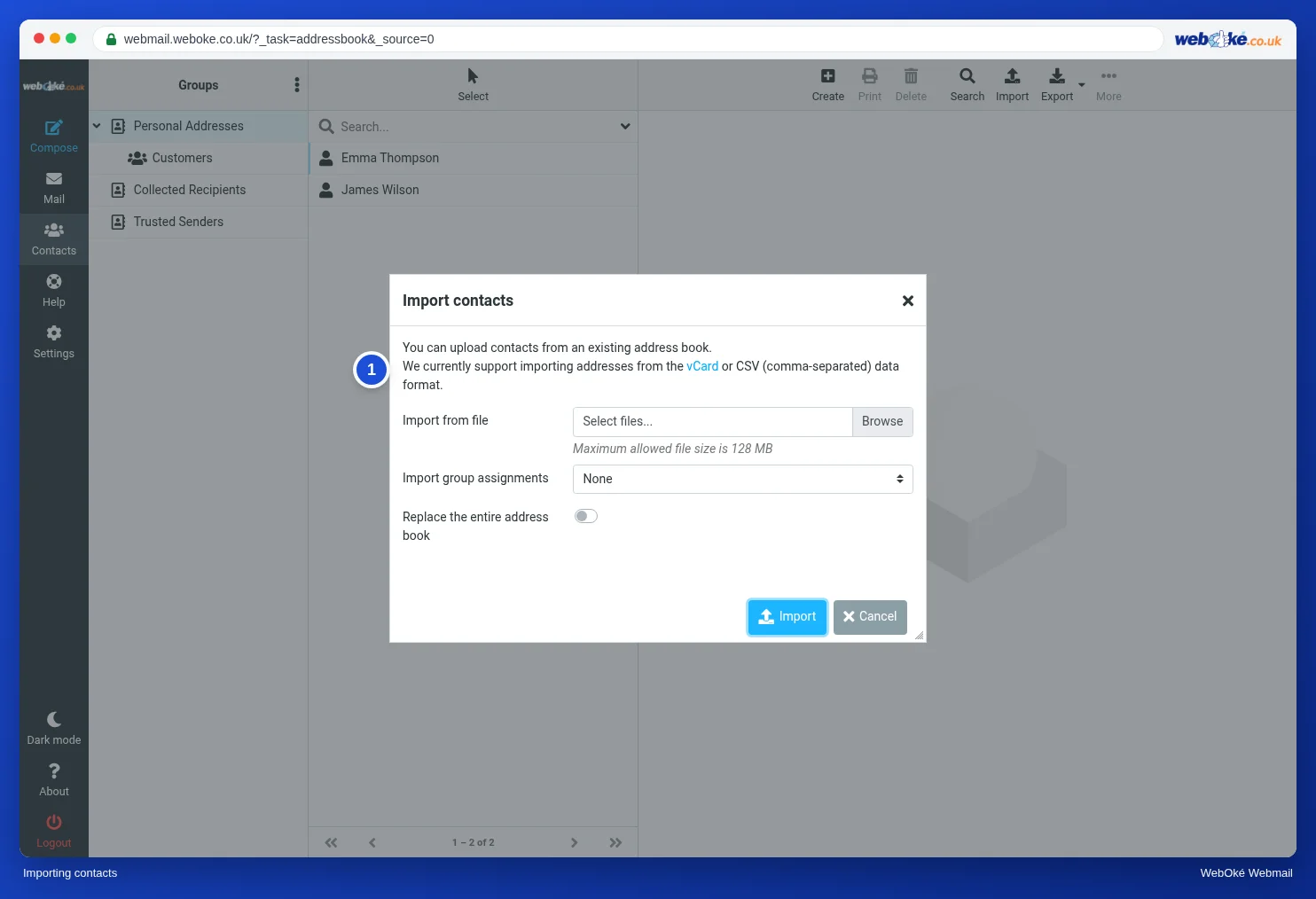
Import group assignments determines what the webmail does with the groups from the file (the CATEGORIES lines):
| Choice | What happens |
|---|---|
| None | Only the contacts are added, without groups |
| All (create groups if necessary) | Every group from the file is added; the webmail creates any missing groups |
| Only for existing groups | Only groups you already have are filled |
Replace the entire address book first deletes everything that is there and then puts the contents of the file in its place. That is only fine if the file really contains everything you want to keep. Leave it switched off by default.
And what about duplicates? If there is already a contact with the same email address and the same name, the webmail skips it during the import. If the name is written differently ("Ahmed Khan" versus "A. Khan"), it does not recognise it as a duplicate and the person is added twice. So if you accidentally import the same file twice, the damage is limited. If you import from two sources with different spellings, clean up afterwards.
An example. Emma is switching from an old mail program. She exports her contacts there as vCard, 212 cards. She imports with "All (create groups if necessary)" and leaves "Replace the entire address book" off. Afterwards she sees her old groups "Customers" and "Suppliers" again, and she searches for a few names she had in both programs, to remove duplicates.
If you receive a business card as an attachment in an email, you do not have to save it first: for a .vcf attachment, the webmail shows a button to add it to your address book.
Exporting as a backup
You export under Contacts > Export. You get one .vcf file with all your contacts; with the small arrow next to it you choose between Export all and Export selected (only the selected ones). If your contacts are in groups, those are in the file as CATEGORIES. Open the file in a text editor and check it: if you see the group names, they will come along again when you import.
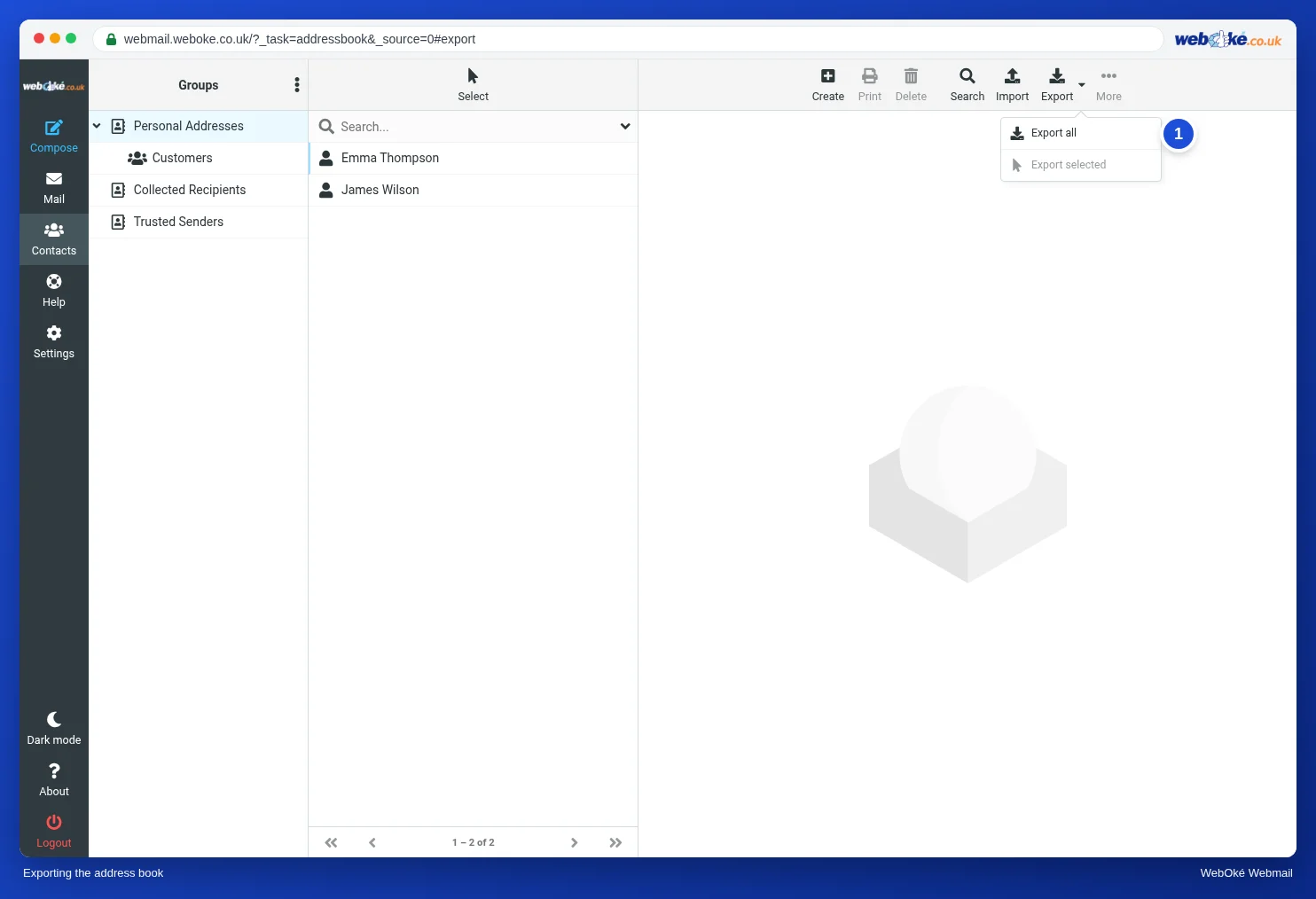
An export is also your backup. Your mail is stored on the server, which makes backups, but you can wipe your address book with one wrong click on Replace the entire address book. An export a few times a year, kept in a safe place, takes a minute. Keep in mind: such a file contains personal data. Do not leave it lying around in your Downloads folder or in a shared folder.
The address book on your phone is a different address book
The contacts on your phone and the address book in the webmail are two separate lists. A new contact on your phone does not appear in the webmail by itself, and vice versa. Your mail program uses IMAP to fetch only your mail, not your contacts.
If you want one address book on all your devices, you need CardDAV: a standard for synchronising contacts between a server and your devices. Nextcloud can do this, for example, and phones and mail programs support it. The WebOké webmail does not synchronise with CardDAV; there you use importing and exporting. So choose one place as your source of truth, and take an export from there now and then.
In practice: how it works in the webmail
Import and Export are at the top under Contacts. An import can be a .vcf or CSV file. The step-by-step guide is in the Roundcube manual (8.3). Other webmail works in a similar way: Gmail and Outlook.com also offer importing and exporting for their contacts, usually with the same two file types.
Summary
- Your address book does not move along by itself when you move your mail: bring it along with an export and an import.
- vCard (.vcf) has fixed fields and stores groups as CATEGORIES; CSV is a table whose columns you have to map.
- Leave Replace the entire address book off, and for groups choose consciously between None, All or Only for existing groups.
- The webmail only recognises duplicates with the same address and the same name; clean up after an import.
- An export is your backup and contains personal data; the address book on your phone is a different list.
Quiz
Exercise
Exercise A7.2: Have your address book checked. Export your address book in the webmail (Contacts > Export; you get a .vcf file) and upload it. If you have only a few contacts so far, first create at least three and put at least one of them in a group. The program reads the file only in memory and stores nothing. It checks: there are at least 3 cards; the version is 3.0 or 4.0; every card has a name (FN) and an email address; there are no duplicates (the same email address on two cards); and there is at least one group (CATEGORIES, otherwise orange). You only see counts, such as "24 cards, 2 without email address, 1 duplicate", never names or addresses. Green if everything is correct; orange if the group is missing, if there are cards without a name or email address, or if there are duplicates; red if there are fewer than 3 cards or the version is unknown.
Further reading
Where steps in the webmail are described, they apply to the WebOké webmail; other webmail works in a similar way.