
Module 8 · 8.3
Webmail on your phone and notifications
Module 8: Safe and worry-free · Reading time: 8 minutes
Learning objective: After this lesson you can choose between webmail in the browser and a mail app on your phone, set up notifications for new mail so that they work, and keep your mail safe on a phone.
Key concepts: responsive design, mail app, IMAP, push notification, refresh interval, browser notification, desktop notification, screen lock, ending a session remotely
Webmail in your phone's browser
The webmail also works on your phone, in the normal browser. You don't need to install anything. The screen adapts to the width: on a computer you see three columns side by side (folders, list, message), while on a phone you see one thing at a time. This is called a responsive design. You open the folder menu with a button at the top left, and a message fills the whole screen.

The image shows the message list on a phone, with the menu button at the top left.
Webmail on your phone is handy in a few situations: on a phone that isn't yours, when you just want to look something up now and then, or when you want to change a setting that only exists in the webmail, such as a filter or your out-of-office reply.
When a mail app is better
If you read mail on your phone every day, a mail app is often more pleasant: your phone's built-in mail app or another app that works with IMAP. Because IMAP keeps your mail on the server (lesson 1.2), you see exactly the same messages and folders in the app as in the webmail. If you read a message in the app, it also shows as read in the webmail.
An app has three advantages:
- Notifications when the browser is closed. The app checks for new mail in the background and shows a notification on your lock screen.
- Offline reading. Messages that have already been downloaded can be read without a connection, for example on the train.
- Integration with your phone. Open attachments in other apps and use the contacts on your phone.
There are also disadvantages. An app stores a copy of your mail on your phone, so a lost phone also means lost mail in someone else's hands if the device isn't properly locked. And an app logs in via IMAP and SMTP with just your password: the second step of the webmail doesn't apply there (lesson 8.1).
An example. Emma Smith uses the mail app on her phone for emma@example.com, because she wants to see straight away when a customer emails an order. She manages her filters and out-of-office reply in the webmail on her laptop. Tom only reads mail outside the office now and then; he uses the webmail in his phone's browser and turns on Keep me logged in when he logs in, because it's his own device.
Notifications in the webmail: what really happens
The webmail can let you know that new mail has arrived. But it helps to understand how this works, otherwise you'll expect notifications that never come.
The webmail is a page in your browser. That page asks the server at regular intervals whether there is anything new. How often is set in Settings > Preferences > User Interface, under Refresh (the refresh interval). Only when the page sees new mail can it show a notification. This means:
- Only while the webmail is open. If you close the tab or the browser, nobody asks the server anything any more, and no notification appears.
- By default only for the Inbox. If you let filters sort your mail into folders (module 6), turn on Check all folders for new messages. Otherwise you'll only see mail in those folders when you open them.
In Settings > Preferences > Mailbox View you can choose three kinds of notifications:
| Notification | What you notice |
|---|---|
| Browser notification | The webmail tab shows that there is new mail |
| Desktop notification | Your computer shows a notification, even when you're working in another program |
| Sound | You hear a sound |
For a desktop notification, the browser first asks for permission: "Allow this site to show notifications?" If you accidentally choose Block there, the notification won't work, no matter how often you tick the box in the webmail. You then turn it back on in your browser's site settings, usually via the padlock or the icon to the left of the address. With the Test button you can try out a notification straight away.
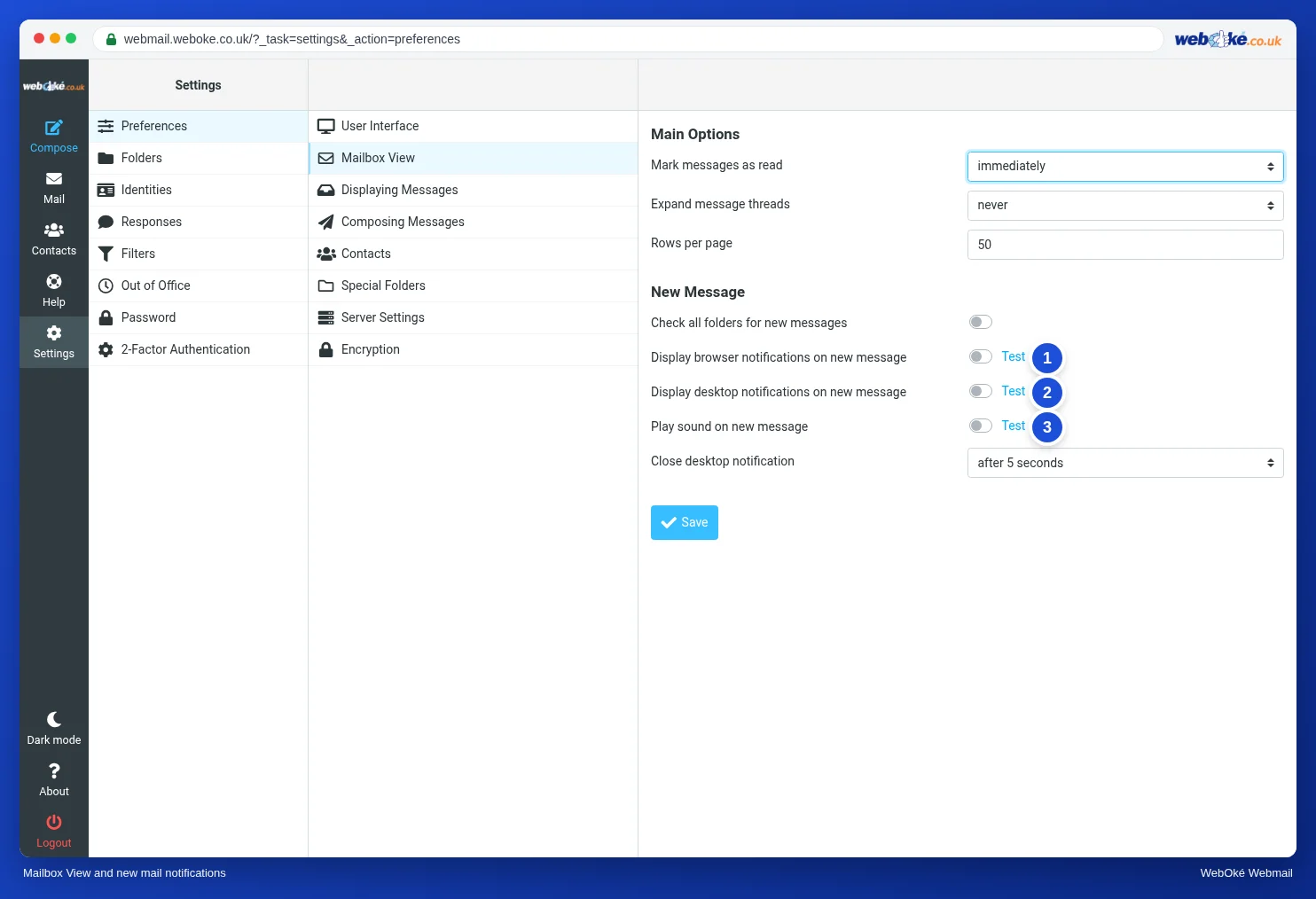
The image shows the options for notifications on a new message.
On a phone, browser notifications are unreliable: phones pause background tabs to save battery. If you want notifications on your phone, use a mail app.
Keeping your mail safe on your phone
A phone goes everywhere with you, so it's also easier to lose than a laptop. A few habits make a big difference:
- Screen lock with a PIN, password, fingerprint or face. Without a lock, anyone who finds your phone can read your mail and send mail in your name.
- Keep me logged in only on your own phone. If you briefly use someone else's phone, log out and close the tab.
- Updates for your phone and apps: keep them up to date.
- Lost your phone? Change your mailbox password straight away, from another device. A mail app on the lost phone can then no longer log in. A webmail session still open on that phone can't reach your mail either: the webmail logs in to the mail server with the stored old password at every step. If you use two-step verification with an app on that phone, use a recovery code to log in (lesson 8.1).
A pitfall when changing it: the mail app on your new or other devices also needs the new password. A device that keeps trying the old one can get your IP address blocked (lesson 8.1).
In practice: how it works in the webmail
On your phone you open the webmail in the browser and log in just as on your computer. You set up notifications in Settings > Preferences > Mailbox View, and the refresh interval under User Interface. How to set up a mail app is explained in the guides for your phone. The steps for the webmail are in the Roundcube manual (10.2 and 12.1). Other webmail works similarly on a phone; large services often have their own app that gives notifications.
Summary
- The webmail works in your phone's browser and adapts to the screen.
- A mail app with IMAP gives notifications when the browser is closed and lets you read offline; it's the same mail as in the webmail.
- Webmail notifications only work while the webmail is open, and by default only for the Inbox; turn on Check all folders for new messages if you use filters.
- A desktop notification needs permission from your browser.
- Lock your phone, only stay logged in on your own device and change your password straight away if you lose your phone.
Quiz
Exercise
Exercise D8.3: Notifications and your phone. In the webmail on your computer, go to Settings > Preferences > Mailbox View, turn on the desktop notification, give your browser permission and try out the notification with the Test button. Then send yourself an email from another address (or from your phone) and check whether the notification appears while you're working in another program. Next, open the webmail in your phone's browser, log in and find where the folders are. Answer: (1) Did the notification appear? If not, what was the cause? (2) Do you use filters that put mail into other folders, and have you turned on Check all folders for new messages? (3) Do you use the webmail, a mail app or both on your phone, and why? (4) Is your phone locked, and do you know what to do if you lose it?
Exercise D8.3: Notifications and your phone
You do this exercise yourself; no one checks it. Tick off what you've done and mark the exercise as done.
You only get a notification when the webmail is open and the browser has permission. If filters put your mail into folders, turn on Check all folders for new messages. Lost your phone? Change your mailbox password, then nobody can get in with that phone any more.
Your ticks and notes only stay in this browser; we don't send them anywhere. If you're signed in, we only save in My courses that you've done the exercise.
Further reading
Where steps in the webmail are described, they apply to the WebOké webmail; other webmail works in a similar way.
- Roundcube Webmail 10.2: A notification for new mail
- Roundcube Webmail 12.1: Webmail on your phone or tablet
- IMAP or POP3: what's the difference and which one should you choose?
- Free course Email in order: setting up and making sure it arrives properly 1.3: IMAP and POP3: retrieving mail
- Free course: Staying safe online for business owners 5.2: Using your laptop and phone safely