
Chapter 3 · 3.5
Use styles instead of manual formatting
A style is a fixed combination of formatting: font, size, colour and spacing. When you work with styles, your document looks the same throughout, you change the formatting in one place, and you can create a table of contents with a single click. In LibreOffice, you'll find them under Styles.
In LibreOffice Writer
Applying a style
- Place the cursor in the paragraph and choose a style from the Styles menu, for example Heading 1, Heading 2 or Body Text.
- Or use the drop-down list on the left of the Formatting toolbar.
- Keyboard shortcuts: Ctrl + 1 to 5 for Heading 1 to 5, Ctrl + 0 for Body Text.
Seeing all styles: press F11 or choose View > Styles. The sidebar shows paragraph, character, frame, page, list and table styles.
Changing a style, for example giving all headings a different colour:
- Format one heading the way you want.
- Leave the cursor in that heading and choose Styles > Update Selected Style. All headings with that style change along with it.
Or right-click the style in the sidebar and choose Edit Style.... To create a new style, use Styles > New Style from Selection.
Removing manual formatting: select the text and choose Format > Clear Direct Formatting. The text gets the formatting of its style again.
In Euro-Office
- Place the cursor in the paragraph and, on the Home tab, click Heading 1, Heading 2 or Normal in the style gallery. Keyboard shortcut: Alt + 1, 2 or 3.
- Changing a style: format one heading, right-click the style in the gallery and choose Update from selection.
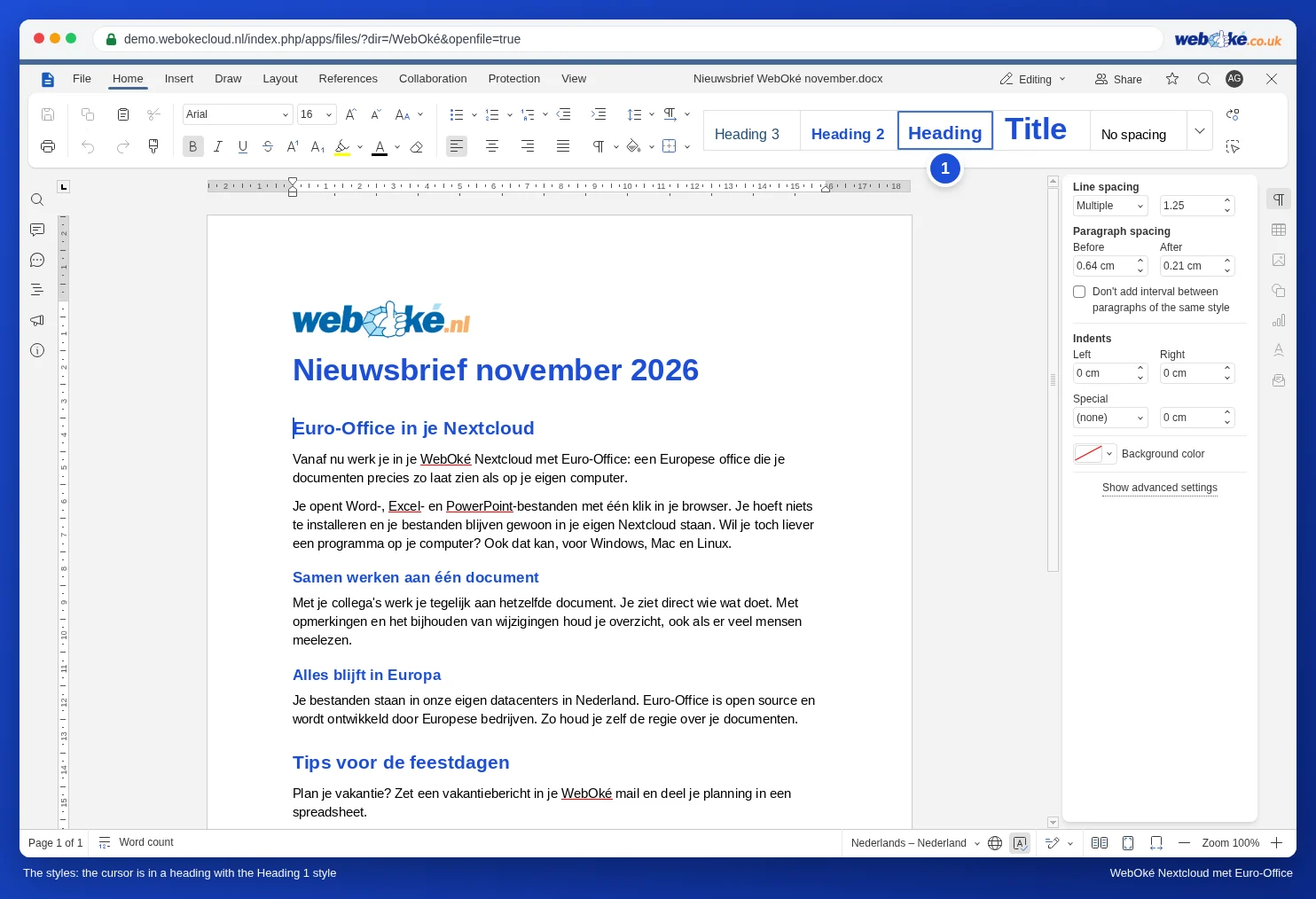
More in Using styles and headings.
Tip: the styles from a Word document carry over to LibreOffice and Euro-Office. Word calls regular text Normal; in LibreOffice you'll often also see styles with the Word names in a Word file. Try not to mix Body Text and Normal in one document: pick one.