
Chapter 3 · 3.2
Creating an automatic table of contents
Watch it in a short video
An automatic table of contents pulls the chapters and sections from your headings, with the correct page numbers. The only requirement is that your headings use a heading style, such as Heading 1 and Heading 2 (see Use styles instead of manual formatting). Word works the same way.
In LibreOffice Writer
- Give your chapter titles the Heading 1 style (Ctrl + 1) and your section titles Heading 2 (Ctrl + 2). You'll also find them in the Styles menu.
- Place the cursor where you want the table of contents to go.
- Choose Insert > Table of Contents and Index > Table of Contents, Index or Bibliography....
- On the Type tab, under Type, choose Table of Contents. Change the title if needed, and under Evaluate up to level choose how many heading levels to include. You'll see a preview on the right.
- Click OK.
Update after making changes: right-click in the table of contents and choose Update Index, or choose Tools > Update > Indexes and Tables. Just like Word, LibreOffice doesn't update the table of contents automatically.
Hold down Ctrl and click a line in the table of contents to jump to that chapter.
In Euro-Office
- Give your headings the Heading 1, Heading 2 (and so on) style.
- Place the cursor in the right spot, go to the References tab and click Table of Contents. Choose a layout.
- After making changes, click Update Table.
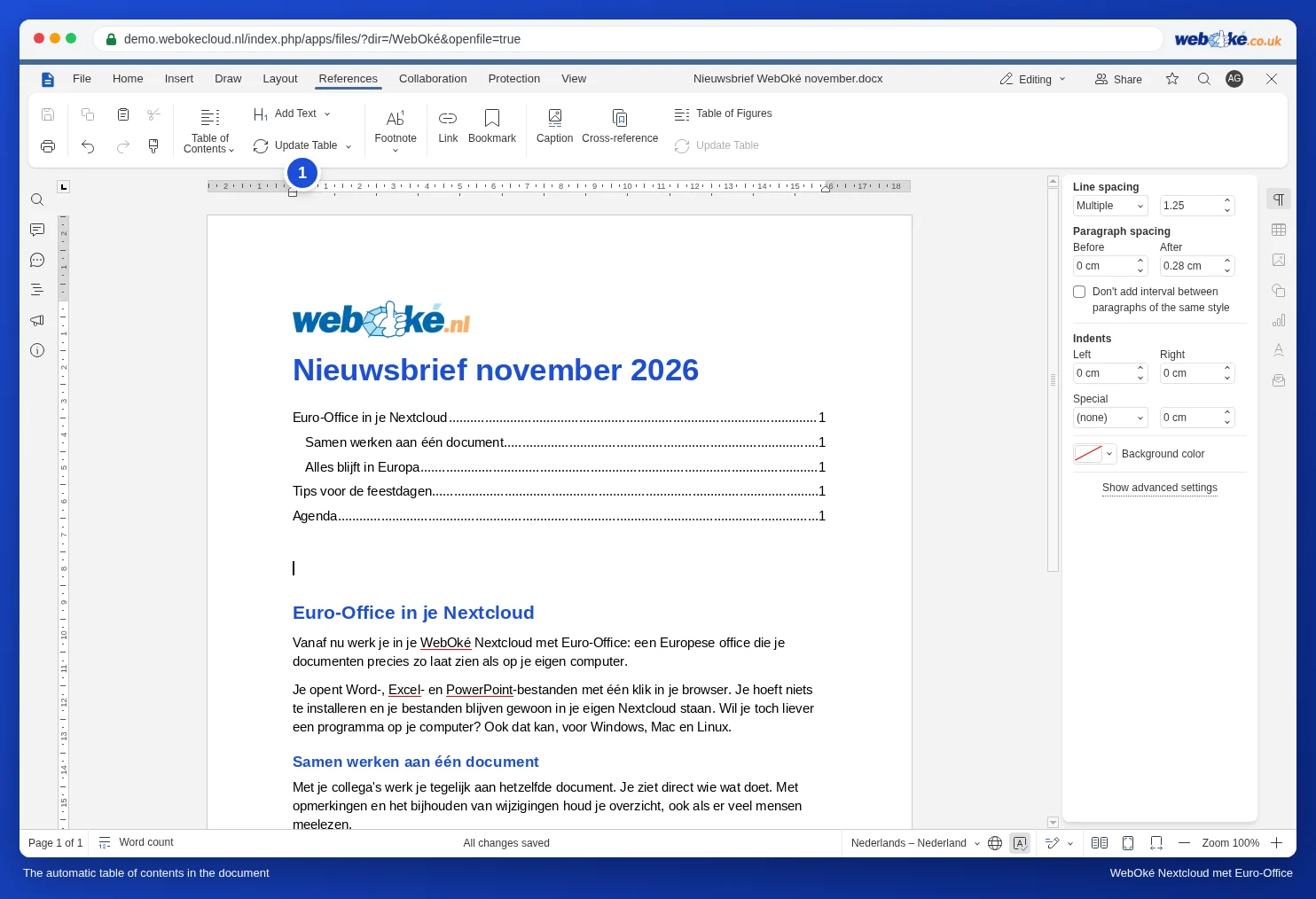
Read more in Creating an automatic table of contents.
Tip: a table of contents from Word stays a real table of contents in LibreOffice and Euro-Office. Update it once after opening the file, so the page numbers are correct even if the font flows slightly differently.