
Add an email address to Thunderbird
Thunderbird is our favourite mail client, great that you're choosing it!
Thunderbird is free, open source and privacy-friendly. It fetches your mail directly from our server, without a third-party cloud in between, as is the case with the new Outlook.
In this article we explain how to add your mailbox to Thunderbird.
Step 1: Open Thunderbird. The first time, the screen for adding an account opens automatically. Otherwise, click the menu button (three lines) in the top right, then Add Account and Email.
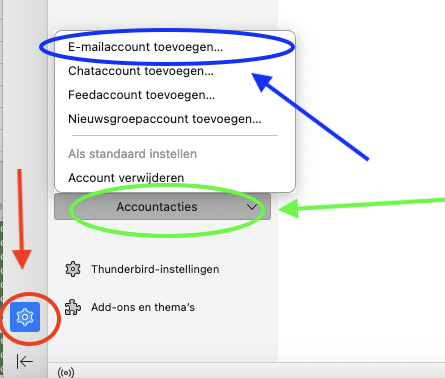
Step 2: Fill in the following fields on this screen:
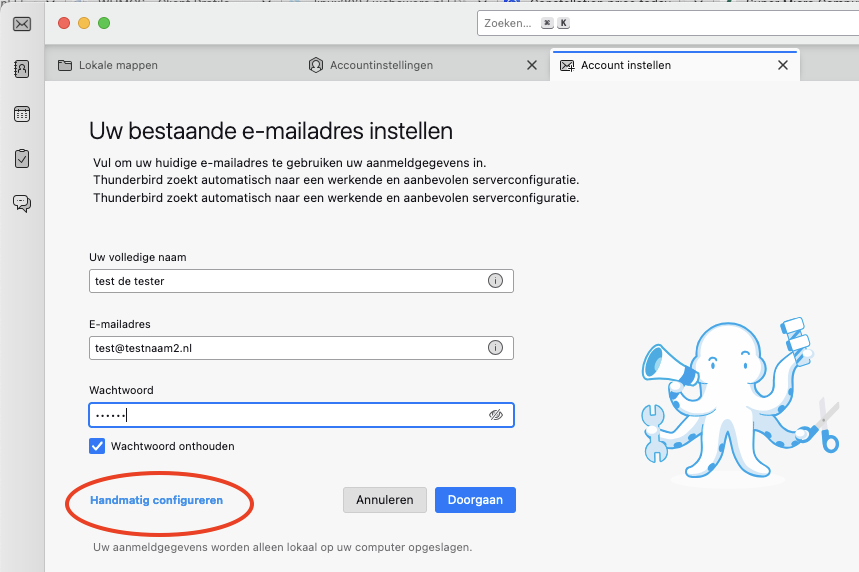
Your full name: the name the recipient sees as the sender, for example your own name or the name of your company.
Email address: your full email address, as you created it in DirectAdmin.
Password: the password of this email address. This is not your My WebOké password. Forgotten it? Read Changing the password or limits of an email address.
Then click Continue.
You will usually see the message Configuration found at email provider. Choose IMAP if Thunderbird lets you choose, and click Done (in newer versions Finish). That's it.
Do you see a different message, such as Configuration found by trying common server names, or do you get a message about a certificate? Then click Configure manually.
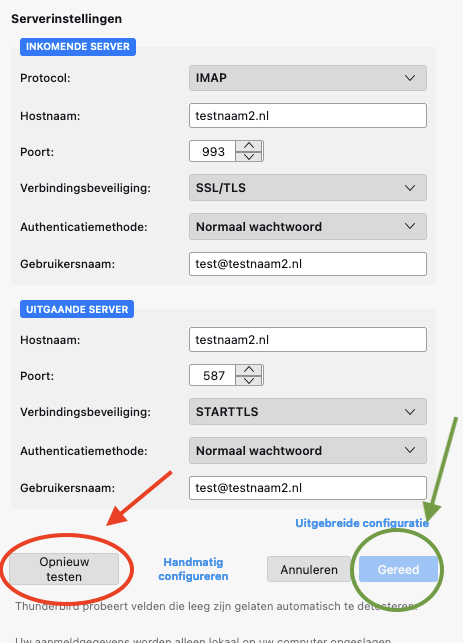
Step 3: If Thunderbird hasn't found the correct settings, you enter them yourself here.
Fill in all fields, even if they are marked as optional.
Incoming settings:
Protocol: IMAP
Hostname: your domain name, in this example testnaam2.nl, or the server name of your package, such as linux2023.webawere.nl. If there is imap. or smtp. in front of your domain name, remove it.
Port: 993
Connection security: SSL/TLS
Authentication method: Normal password
Username: your full email address.
Outgoing settings:
Hostname: the same name as for incoming.
Port: 587
Connection security: STARTTLS (or port 465 with SSL/TLS)
Authentication method: Normal password
Username: your full email address.
Please note: do you only have an email package with us (such as Email One) and is your website hosted elsewhere? Or do you get a certificate warning with your domain name? Then enter the server name of your package. You can find it in My WebOké under My Products, in the Server column, and in the welcome email for your package.
Once all fields are filled in, click Re-test. Did the connection succeed? Then click Done.
All done! Your mailbox is now active in Thunderbird.
See also in the DirectAdmin manual: All settings at a glance: servers, ports and security.
Detailed explanation: Adding your email address automatically and Manual setup: servers, ports and security in the Thunderbird manual, and Thunderbird in the DirectAdmin manual.