
Chapter 3 · 3.1
How does WebOké secure your Nextcloud?
Your Nextcloud often holds your most important files: contracts, photos, your administration. That's why your WebOké Nextcloud is well protected from day one. We take care of part of this, and you take care of another part. This article covers both.
What WebOké arranges for you
- Your data stays in the Netherlands. In two Dutch data centres run by NorthC, in Aalsmeer and Oude Meer. Not with an American tech company.
- A dedicated server per package. With Personal, Family or Max, your Nextcloud runs separately from other customers'. Only Nextcloud Free is a shared Nextcloud with its own account per user.
- Encrypted connection. Your Nextcloud only works over https, with a valid certificate. You can see this from the padlock in your address bar.
- Encrypted storage. The disks holding your data are encrypted.
- Always an extra login code. After your password, your Nextcloud asks for a code sent by email. This is called Two-Factor Authentication (or 2FA). It's switched on for everyone and can't be turned off. See The email login code: how it works and what to do if the email doesn't arrive.
- Strong passwords. Your Nextcloud only accepts passwords of at least 10 characters, with an uppercase letter, a lowercase letter, a number and a special character. Passwords that are very common or known from data breaches are rejected. That's the minimum: we recommend 15 characters or more, see Changing or forgetting your password.
- Slowing down intruders. If someone repeatedly tries the wrong password, your Nextcloud slows down login attempts from that internet address. This makes guessing a lost cause. See Multiple invalid login attempts: why you're being slowed down and how to fix it.
- Updates and backups. We keep your Nextcloud up to date with security updates and make backups. You can read what this means for you in Backups with WebOké: what we keep and what you can do yourself.
What you do yourself
Go to your security settings:
- Click your profile picture or initials in the top right.
- Choose Settings.
- Click Security on the left.
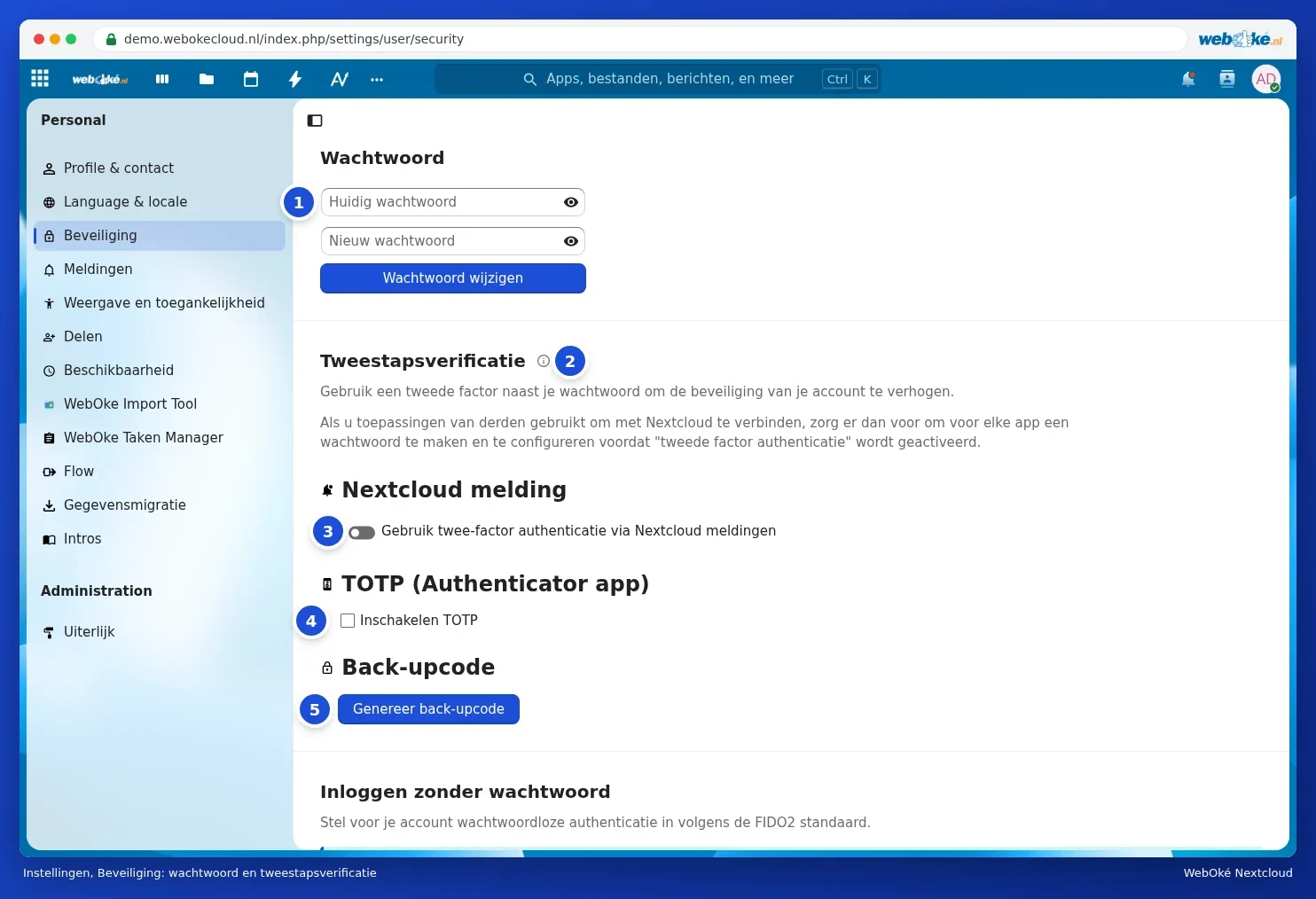
On this page, you manage everything related to logging in. From top to bottom:
| Section | What you use it for | Read more |
|---|---|---|
| Password (1) | Changing your password | Changing or forgetting your password |
| Two-Factor Authentication (2) | Using a notification on another device (3), an authenticator app (4) or backup codes (5) in addition to the email code | Setting up an authenticator app and saving backup codes and Approving login with a notification on another device |
| Passwordless login | Logging in with a security key or passkey | Setting up an authenticator app and saving backup codes |
| End-to-end encryption | Encrypting folders that only you can read | End-to-end encryption: when to use it, and when not to |
| Devices & sessions | Seeing where you're logged in, creating and revoking app passwords | App passwords: when and how to use them and Viewing, revoking, or remotely wiping devices and sessions |
Our tips in brief
- Choose a long password of at least 15 characters that you don't use anywhere else, for example five or six random words. A password manager can help with this.
- Set up an authenticator app and keep your backup codes in a safe place (Setting up an authenticator app and saving backup codes).
- Use a separate app password for each calendar, contacts or other app (App passwords: when and how to use them).
- Check Devices & sessions now and then to make sure you recognise all your devices (Viewing, revoking, or remotely wiping devices and sessions).
- Log out on computers that aren't your own.
- Secure your mailbox well too: that's where your login codes arrive.
Please note: WebOké will never ask you for your password or login code, not by email, not by phone and not via WhatsApp. If you receive such a request, don't share anything and contact us.