
Paying via a payment link or QR code (and what to do if it doesn't work)
You can pay WebOké invoices and orders via a payment link or QR code. You pay quickly and securely, and the payment is then processed automatically. Link not working? Read what you can do at the bottom of this page.
How to pay via a payment link or QR code
- Open the payment link, or scan the QR code with your phone's camera. You don't need to be logged in.
- You'll arrive at the payment screen. Choose your payment method there, for example iDEAL.
- Complete the payment with your bank or payment provider.
After payment, everything is processed automatically. You don't need to let us know: shortly afterwards, the invoice will show as paid in My Invoices.
Viewing and paying outstanding invoices
- Log in to My WebOké.
- Go to My Invoices and choose the Outstanding tab.
- Click Pay next to the invoice, or open the invoice and click Pay now. The QR codes are also shown on the invoice page.
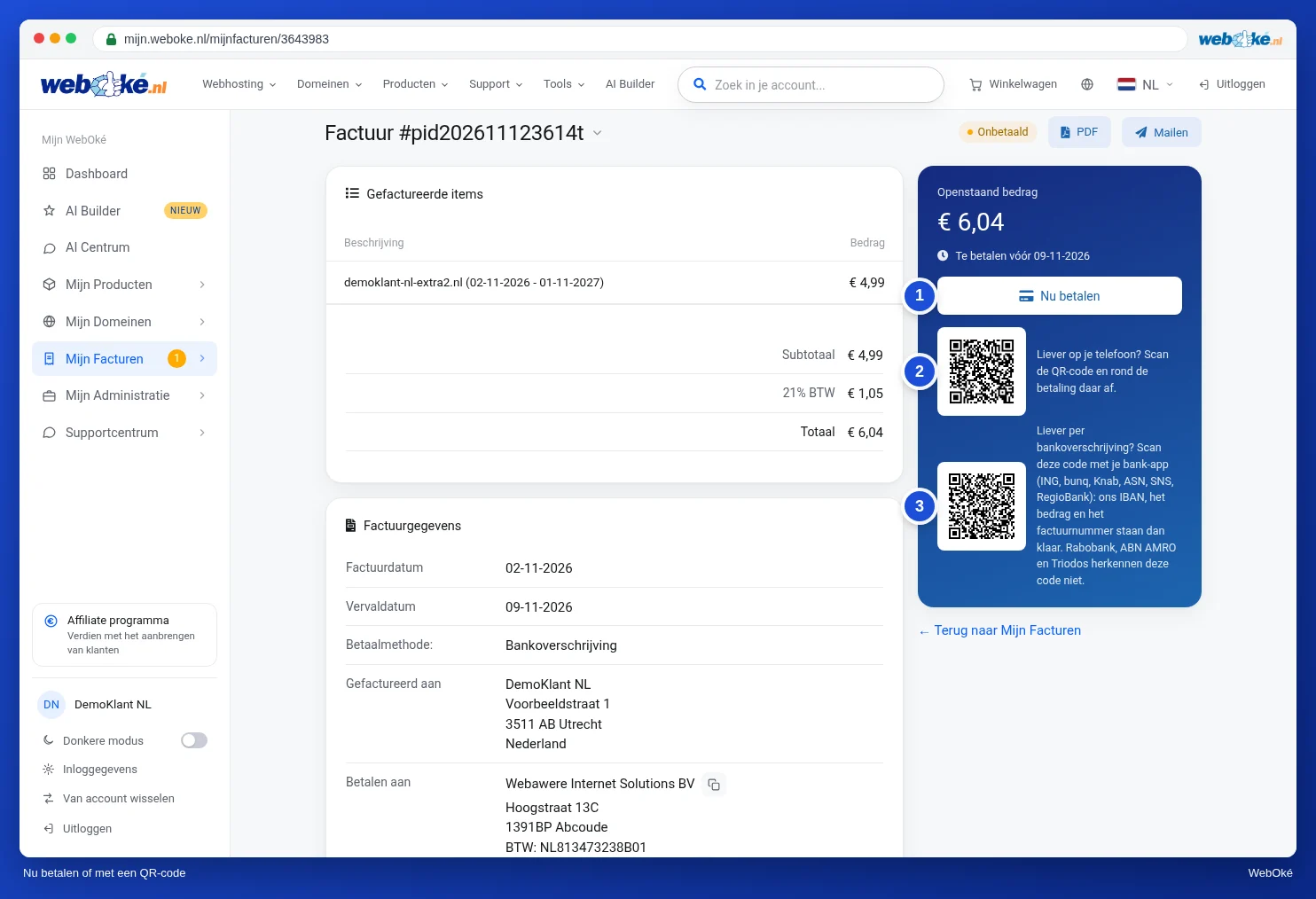
More information, including how to pay multiple invoices at once: Paying an invoice (including several at once).
Payment link or QR code not working?
- The link has expired. A payment link works for 90 days. After that, log in and pay the invoice via My Invoices.
- The invoice has already been paid. In that case there is nothing left to pay via the link. Check in My Invoices whether the invoice shows as Paid.
- A direct debit is already in progress. In that case the invoice shows as Pending and you can't pay it again. This prevents you from paying twice.
- You don't trust the link, or it doesn't open properly. Type www.weboke.nl/en yourself, choose Support › Enter action code in the menu and paste the action code shown below the link in the email. See Is this email really from WebOké? Recognising phishing and using the action code.
- The payment itself fails. Try a different browser or device, or choose a different payment method on the payment screen.
- The second QR code isn't recognised. This bank transfer code doesn't work in every banking app. The invoice page lists which banks support it. Otherwise, use the first QR code or Pay now.
Good to know
- As long as an invoice is outstanding, you'll see a notification at the top of the My WebOké dashboard. That way you'll never miss a payment.
- If you pay by bank transfer, the invoice stays open until we've received your money.
- Is an online payment still not shown as processed in My Invoices after a while? Contact us via the Support Center and we'll look into it for you.
See also: I'm receiving a payment reminder even though I've already paid.
Was this article helpful?