
Setting up the Nextcloud app on iPhone
With the Nextcloud app, you can easily connect your iPhone or iPad to your WebOké Nextcloud. That way you have all your files at hand on the go, and you can, for example, have your photos uploaded automatically.
Step 1 - Install the Nextcloud app from the App Store.
Click here to open the App Store
Step 2 - Open the app and tap Log in.
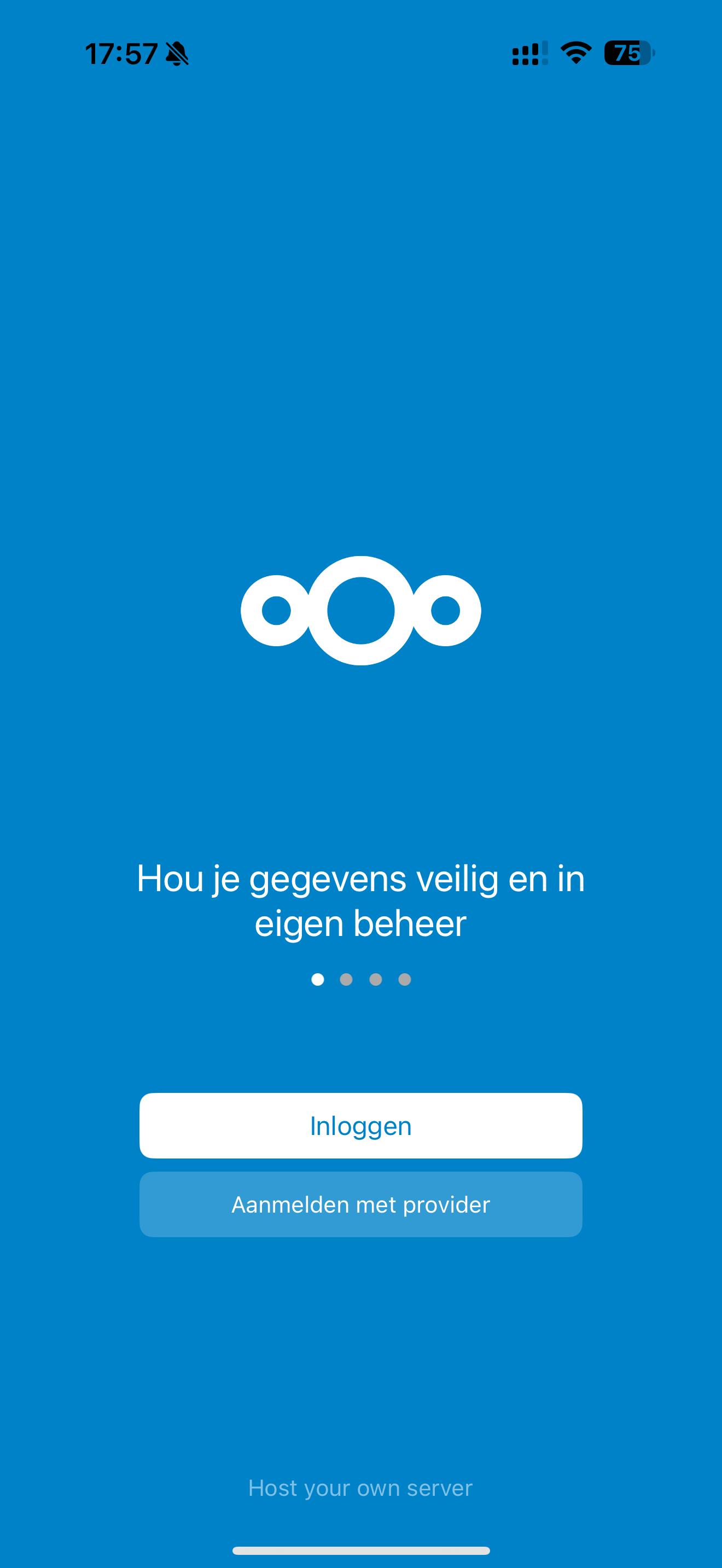
Step 3 - Under Server address, enter the address of your Nextcloud, for example https://jouwnaam.webokecloud.nl. Use the address as you see it in your browser, without /apps/files at the end.
Step 4 - The login screen of your Nextcloud opens in the app: Connect to your account. Tap Log in and enter your username and password, followed by the login code from your email or your authenticator app.
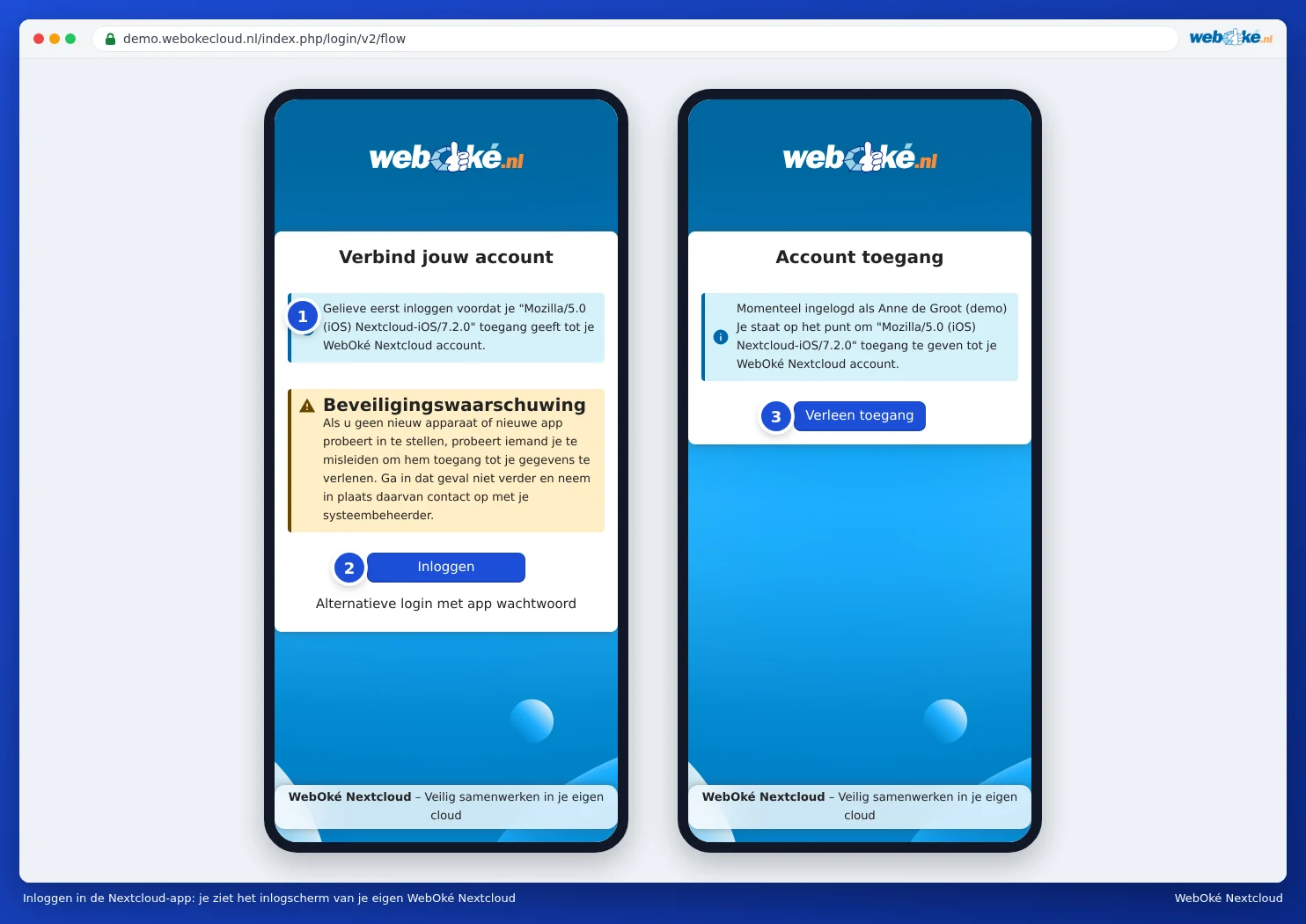
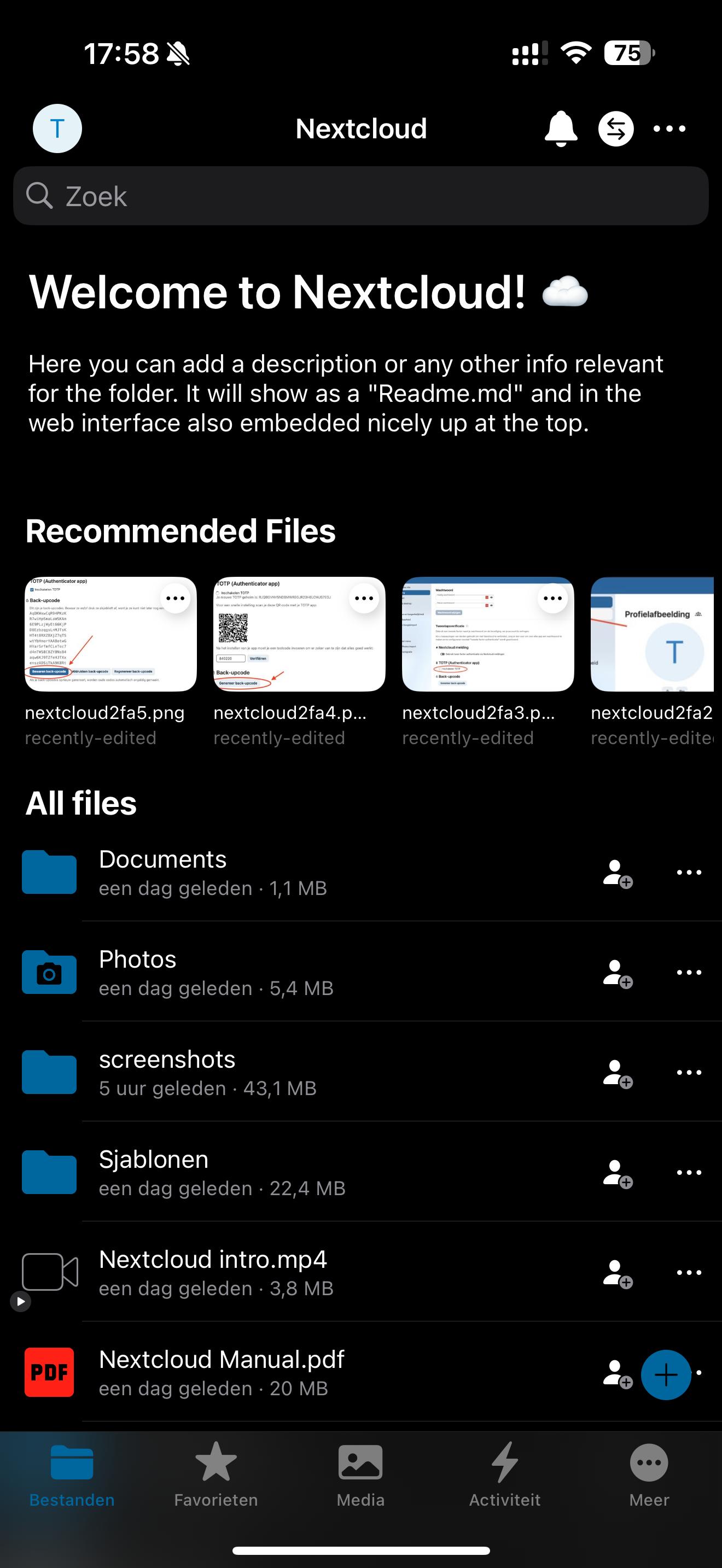
Step 5 - Tap Grant access. The app opens with your files. This way, the app automatically gets its own app password.
Step 6 - Done! In the app settings you can choose, among other things, whether your photos are uploaded automatically.
Can't log in to the app? Log in with a QR code
If, for example, you can't paste the login code into the app, create an app password on your computer and scan it as a QR code.
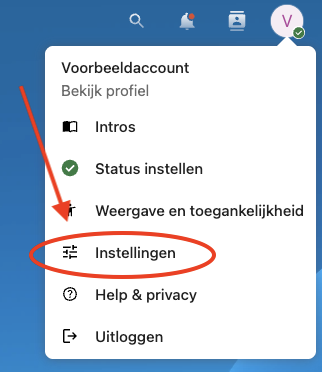
- Log in to your Nextcloud on your computer and click your profile picture in the top right corner.

- Click Settings.
- Click Security on the left.
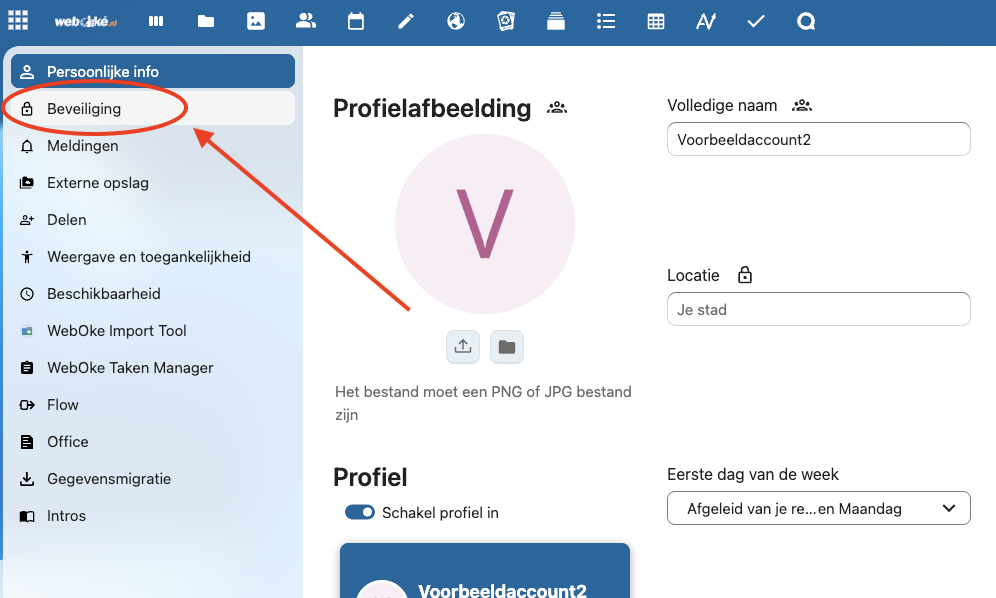
- Scroll to Devices & sessions, enter a recognizable name (for example iPhone) and click Create new app password.

- In the window, click Show QR code for mobile apps.

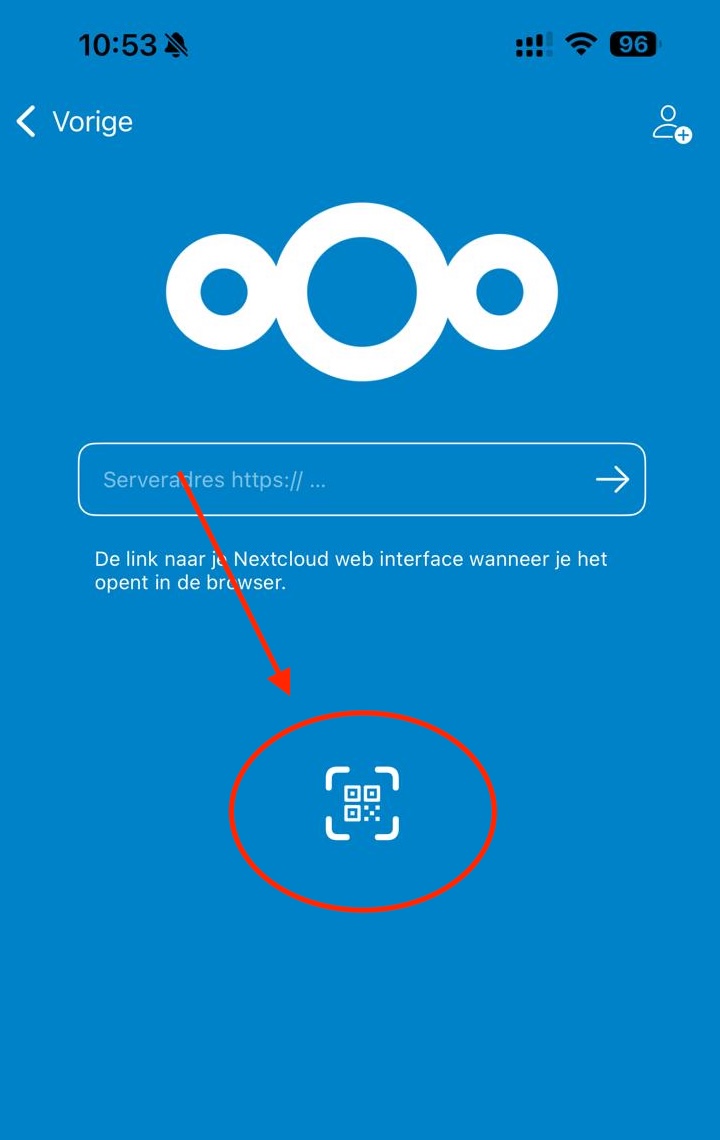
- In the app on your iPhone, tap the QR code icon when logging in and scan the code. You will be logged in right away.
Your iPhone will then appear in your Nextcloud under Settings, Security, Devices & sessions. If you lose your phone, you can revoke its access there.
You don't connect your calendar and contacts through this app, but through your iPhone's settings. See Synchronize Nextcloud calendar and contacts with iPhone/iOS.
Detailed explanation with screenshots: The Nextcloud app on iPhone or iPad in the Nextcloud manual.