
How do I transfer my domain to WebOké?
You can easily transfer a domain from another provider to WebOké. To do so, you need the transfer code, also called the EPP code or auth code. In this article you'll read how to start the transfer, how to track it and what to do if it fails.
How to transfer your domain to WebOké
- Request the transfer code from your current provider. You'll usually find it in your provider's customer panel. While you're there, also remove any transfer lock from the domain.
- Go to our domain transfer page and enter your domain name.
- Choose whether you want to transfer just the domain or order hosting as well, and enter the transfer code while placing your order.
- Complete your order in three steps: Shopping cart, Details and Review and pay.
Don't have the code yet, or is your website still running at your old provider? Then choose Transfer later. You can then start the transfer yourself whenever it suits you. You'll find more information in Transferring a domain to WebOké.
Tracking the transfer
We start the transfer right after you place your order. You can track the status in My Domains, on the Transfer Center tab. Under Pending transfers you'll find all transfers that haven't been completed yet.
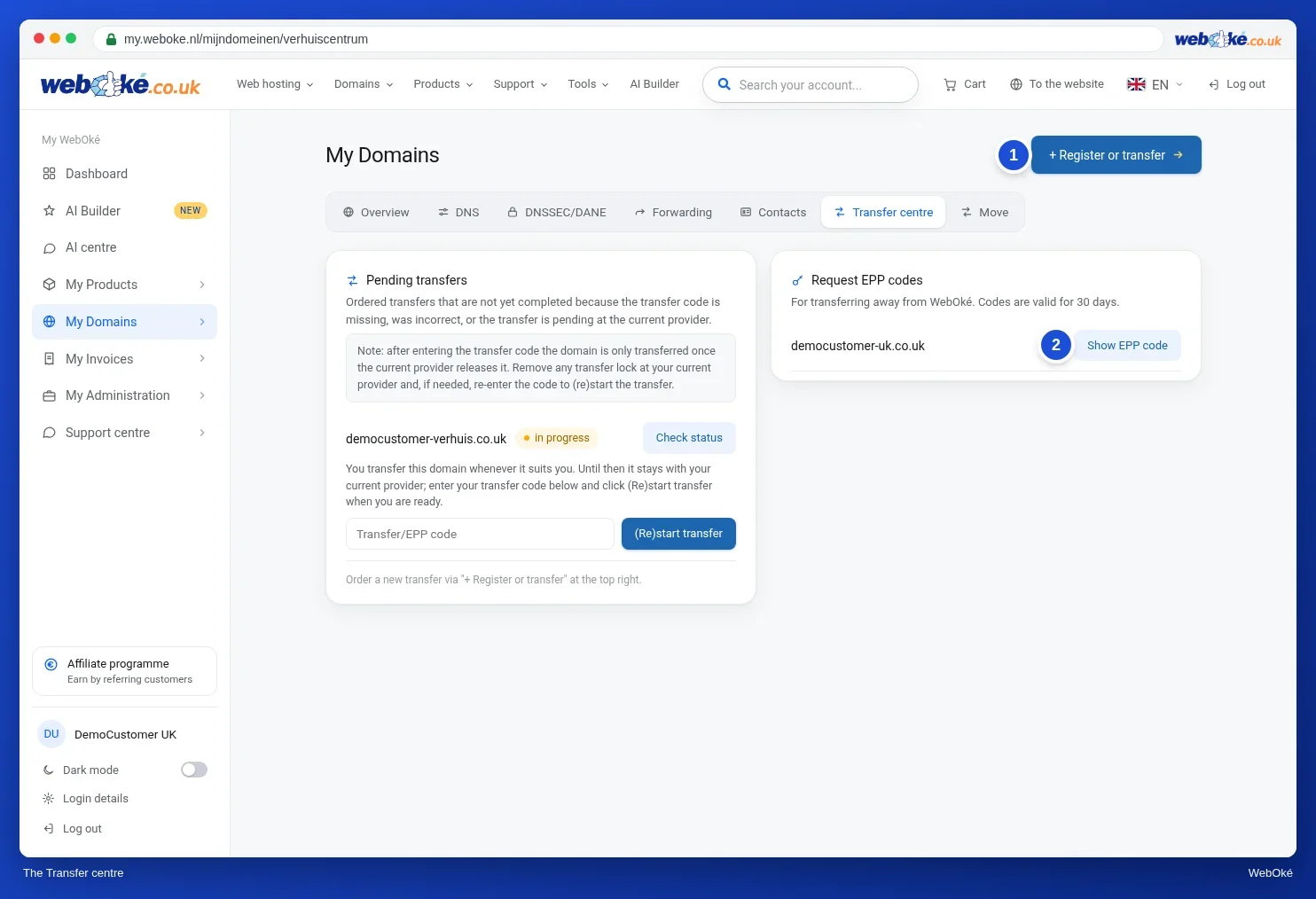
- in progress: the transfer is running. Use Check status to see how far along it is at the registry.
- You'll transfer this domain at a time that suits you: you chose Transfer later. The domain stays with your current provider until you enter the transfer code and click (Re)start transfer.
- Transfer failed: the registry or your old provider didn't process the transfer. See below for what you can do.
How long does it take?
- .nl and .be: with a valid code, the transfer is usually completed within a few minutes. After that, a .nl domain may still show as a transfer in My Domains for up to an hour. That's normal. For a .nl domain you don't need permission from your old provider: the transfer code is enough.
- Other extensions, such as .com: this can take 5 to 7 days, because your current provider has to release the domain first. Sometimes your old provider or the registry sends you an email in which you need to confirm the transfer.
Transfer isn't progressing or fails
These are the most common causes:
- The transfer code is incorrect or expired. Request a new code from your current provider. Watch out for capital letters and spaces when copying it.
- The domain is locked (transfer lock). Ask your current provider to remove the lock. There is no transfer lock for .nl, .eu, .be and .nu.
- The transfer was rejected or is awaiting confirmation. Check with your old provider whether the transfer still needs to be confirmed there, and whether you've received an email from them or from the registry.
- The domain was registered or changed owner less than 60 days ago. For .com, among others, the registry won't allow the transfer yet in that case. You'll receive an email with the date from which you can restart the transfer yourself.
- The domain is in quarantine. This happens if the domain has already been cancelled or has expired at your old provider. Please contact us and we'll see what's possible.
Have you resolved the cause? Then restart the transfer yourself:
- Go to My Domains › Transfer Center.
- Enter the transfer code for your domain in the Transfer/EPP code field.
- Click (Re)start transfer.
All the buttons in the Transfer Center are explained in The Transfer Center: transferring domains to WebOké. Is your current provider refusing to hand over the transfer code for a .nl domain? Then read Escalating a transfer with SIDN. Still not working after that? Create a ticket in the Support Center and include the domain and the message you see.
Good to know
- Only cancel your old subscription after the transfer has been completed, otherwise the domain may end up in quarantine or become available to others.
- When transferring, we renew your domain for one year from the transfer date.
- Is DNSSEC enabled at your old provider? Then preferably disable it there a day in advance. Read DNSSEC and transfers: disable it first, or bring the key along.
- Are you also moving your website or email to us? Then set up the hosting first and move your files and mail before you start the transfer, so everything keeps working. If your site or mail doesn't work after the transfer, read Website or email not working after a transfer or DNS change.
Want to transfer lots of domains at once? Paste them all in one go, see Registering or transferring many domains at once.
You might also enjoy: The history of the domain name