
I can't log in to WordPress: what now?
Can't log in to yourdomain.com/wp-admin anymore? Have you lost your password, do you keep ending up back on the login page, or does the page not open at all? Go through these steps in order.
1. Log in via the Website Manager
If your WordPress site is in the Website Manager in My WebOké, you can get into the admin area without a password.
- Log in to My WebOké and go to My Products › Website Manager.
- Click Login next to your website. You're instantly logged in to the WordPress admin area.
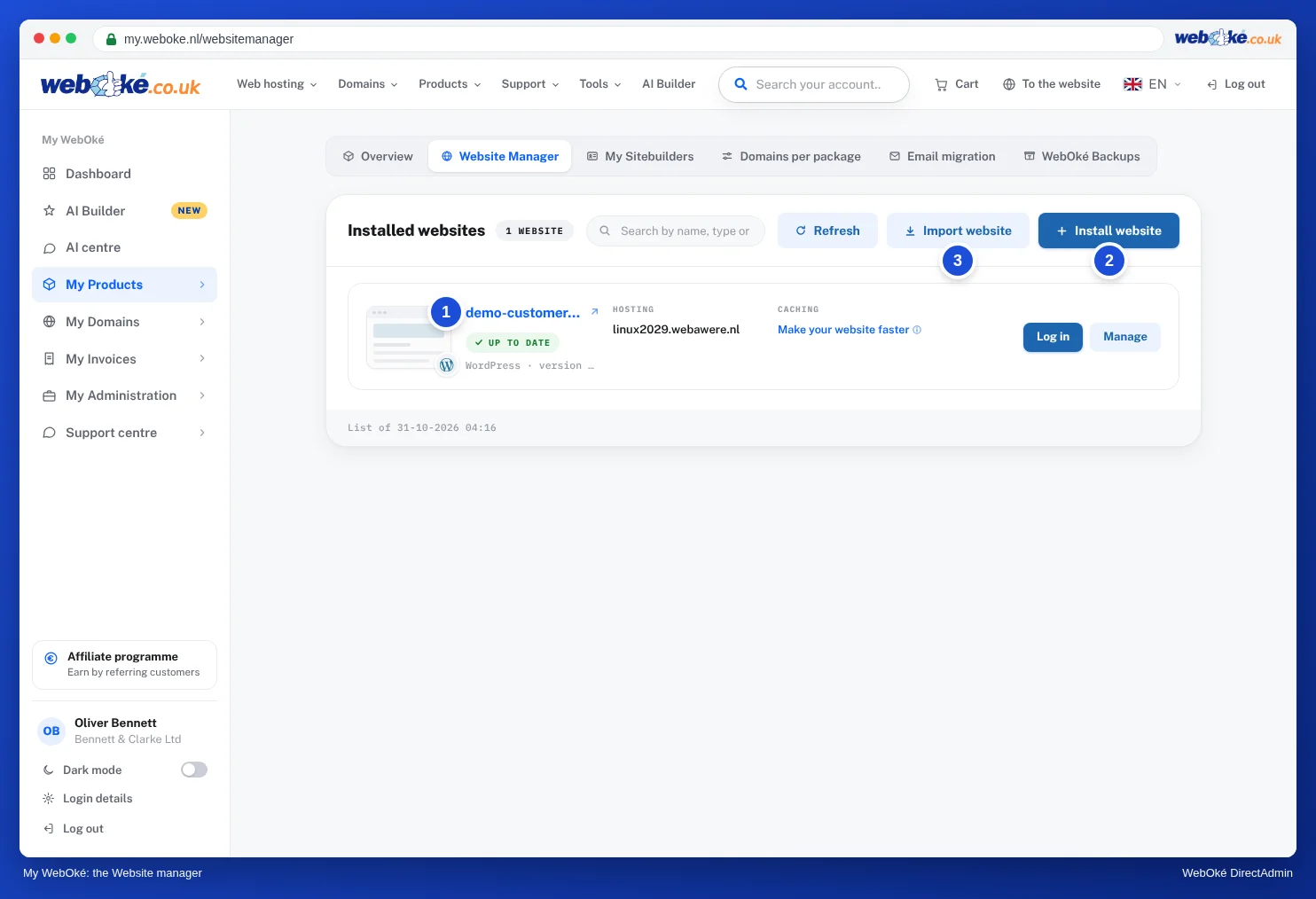
Is your site not listed? Then click Import website and choose The website is already on my hosting package. Nothing changes on the site itself. See The Website Manager: manage your websites in one place.
2. Set a new password
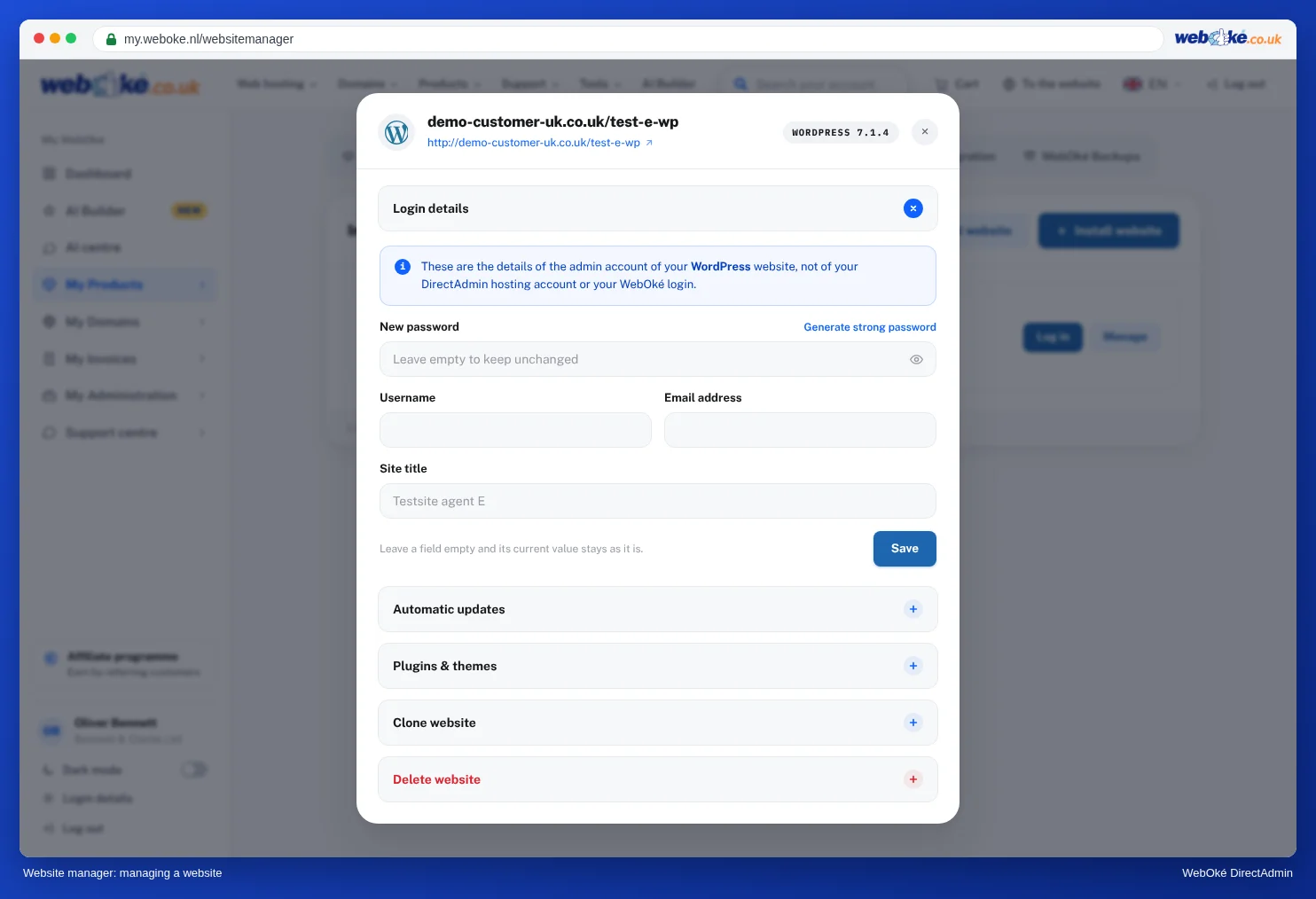
- Via the Website Manager: click Manage › Login details next to your website, enter a new password and click Save. This is also where you can view and change the username and email address of the administrator account.
- Via WordPress itself: click Lost your password? on the login page. WordPress then sends a link to the email address of your administrator account. If that email doesn't arrive, check your spam folder or use the Website Manager.
- Via phpMyAdmin, if the other methods don't work: open your site's database, go to the table ending in
_users, edit theuser_passfield for your account, selectMD5under Function and enter your new password. After you log in, WordPress automatically converts the password to a secure version. See Opening and using phpMyAdmin.
3. Temporarily disable a security plugin or two-factor authentication
Still can't get in with the correct password, is the site asking for a code you don't have, or do you see a message from a security plugin? Then temporarily disable that plugin.
- Using the Website Manager: click Manage › Plugins & themes and click Disable plugin next to the plugin.
- If that doesn't work, open File Manager in DirectAdmin and go to
domains/yourdomain.com/public_html/wp-content/plugins. Rename the plugin's folder, for examplewordfencetowordfence-off. WordPress will then disable the plugin. - Log in, fix the issue (for example by setting up a new two-factor code) and then give the folder its original name back. Then re-enable the plugin in WordPress.
4. Does the login page not open, or do you get an error message?
- Have you protected wp-login.php with your IP address? Then you can no longer access it if your IP address has changed, for example at home or on the go. Update the IP address in the
.htaccessfile inpublic_html, or temporarily remove the rule. See Securing WordPress wp-login.php. - Are your website, email and DirectAdmin also not working from your own internet connection, but they do work via 4G or 5G? Then our firewall has probably blocked your IP address. Check and unblock it yourself at Am I blocked? See Am I blocked? Your IP address and our firewall.
- Do you keep ending up back on the login page after logging in? Clear your site's cookies in your browser or try a private window. Also check that the WordPress address and site address are correct, see Forcing visitors to redirect to https.
- Is the page blank or do you see error 500? Read Error 500 or "critical error" on your website.
Still stuck?
Create a ticket via the Support Center. Include your website's address, what you've tried and which message you see.
Using Joomla instead of WordPress? Read Lost your Joomla administrator password?
Detailed explanation with screenshots: Can I also do this in My WebOké? The Website Manager in the DirectAdmin manual.
Want to learn more? Take the free WordPress course, lesson 3.1 https and the certificate or lesson 3.3 Users and roles.