
Adding a new page and menu item in the Drag-and-drop Builder
Here's how to add a new page to your website's menu in the Drag-and-drop Builder, and optionally turn it into a submenu.
Using the AI Builder? It works differently there: in the rail on the left, click Pages and then Add page. You manage the menu under Menu. See AI Builder: editing, versions and publishing.
Creating a new menu item
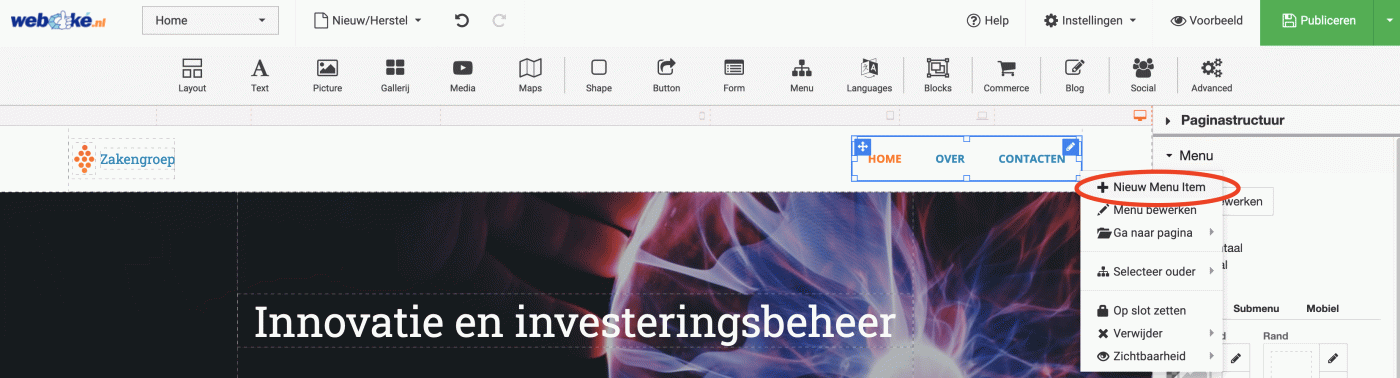
- Right-click the menu bar of your website and choose New Menu Item.
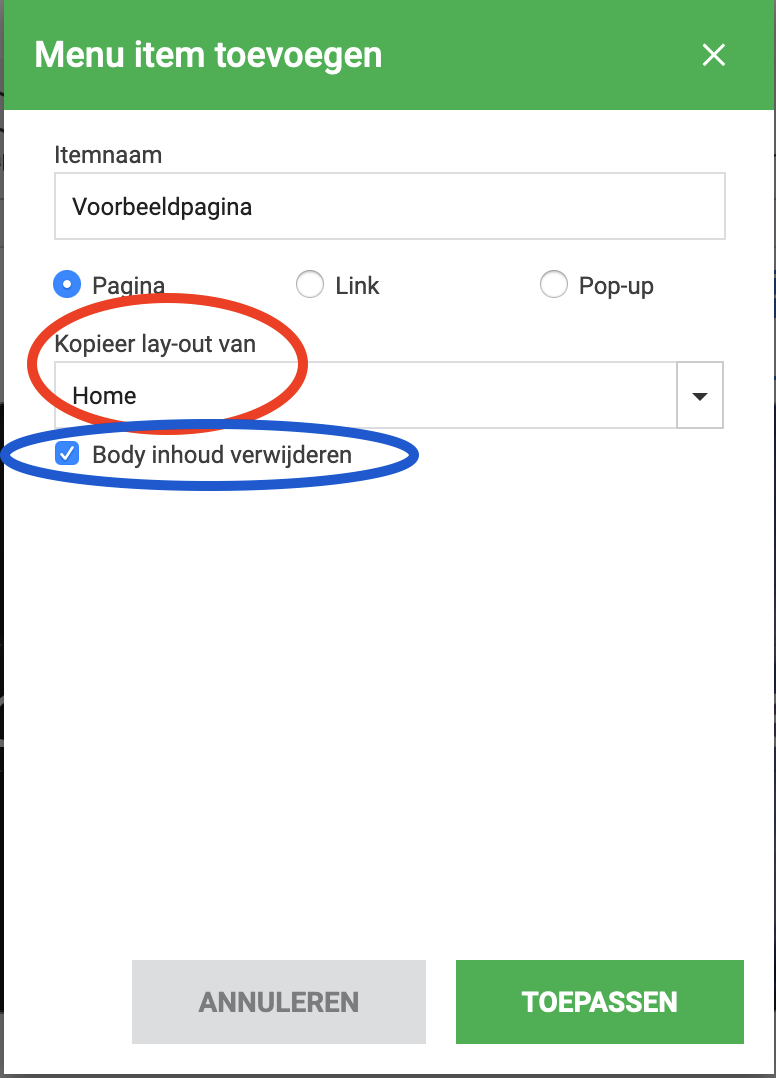
- Enter the name of the menu item. You can copy the layout of an existing page to the new page. Want to start with a blank page? Then tick Remove body content. Only the header will be copied.
Creating a submenu item
- First create a new menu item as described above.
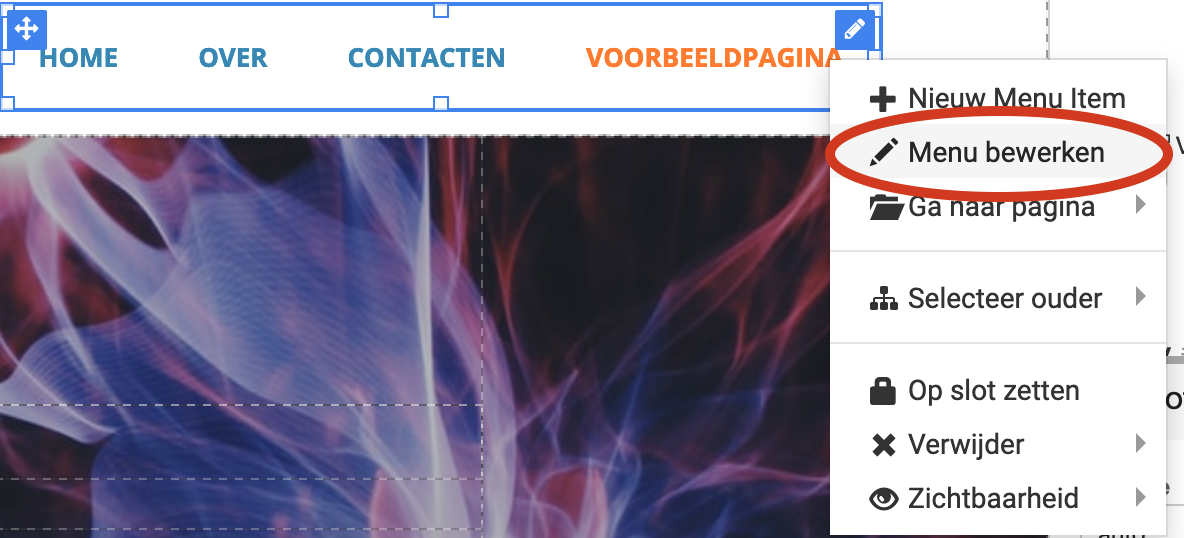
- Right-click the menu bar and choose Edit Menu.
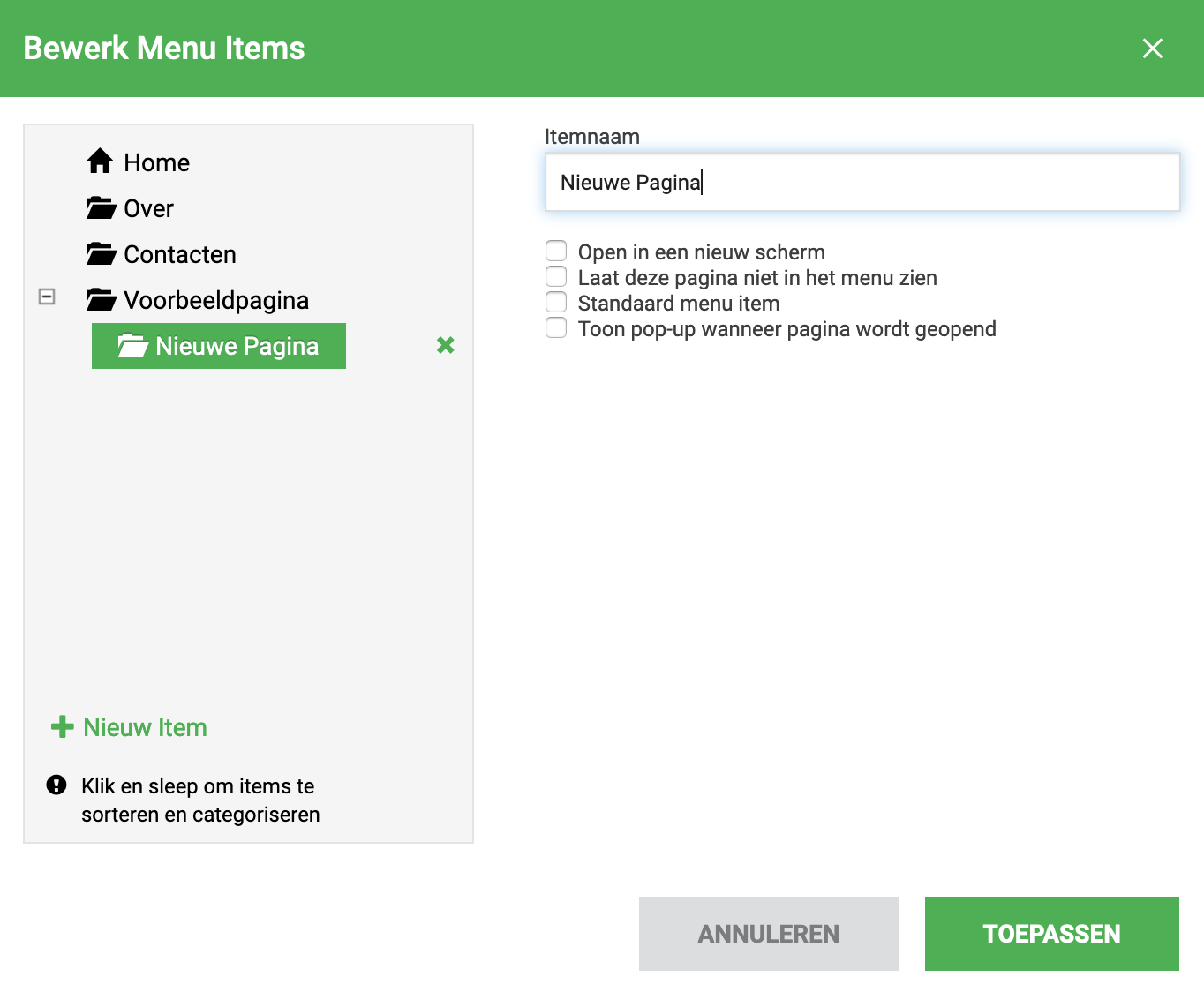
- In the left panel, drag the new menu item below an existing menu item. It then becomes a submenu item.
- Click Preview to view the result.

Visitors will only see the new page once you then click Publish.
See also: Building a website with the Drag-and-drop Builder: AI features, publishing and your own domain.
Detailed explanation with screenshots: The drag-and-drop builder in the WebOké manual.
Was this article helpful?